Free Online Image Converter: Convert PNG, JPG, WebP, HEIC & SVG
Convert PNG, JPG, WebP, HEIC, and SVG files directly in your browser. No software, no signup, no file uploads to a server. A practical guide to online image format conversion.
You get a file in a format you didn't ask for - a WebP image that Outlook won't attach, a batch of HEIC photos from your iPhone that Windows Photo Viewer refuses to open, an SVG that your client's CMS won't accept. At that point most people either dig out Photoshop or start Googling for a converter.
A browser-based image converter handles this in seconds. You open the tool, upload the file, pick a target format, and download the result. No installation, no account, no watermark. CoditTools provides separate converters for the most common format pairs - PNG to JPG, JPG to WebP, HEIC to JPG, SVG to PNG, and more - and each one runs entirely in your browser so your files never leave your device.
This guide explains what's actually happening when you convert an image, which format to choose for what purpose, and how to avoid common conversion mistakes.
What is an image converter?
An image converter changes an image from one file format to another. The image itself - the actual visual content - stays the same, but the way it's encoded changes. Different formats use different compression methods, support different features (like transparency), and have different compatibility with software and platforms.
Converting online means the conversion code runs in your web browser using your device's CPU. Nothing is uploaded to a remote server. The tool reads the file locally, processes it, and gives you the result as a download.
Which image formats can you convert?
JPG / JPEG
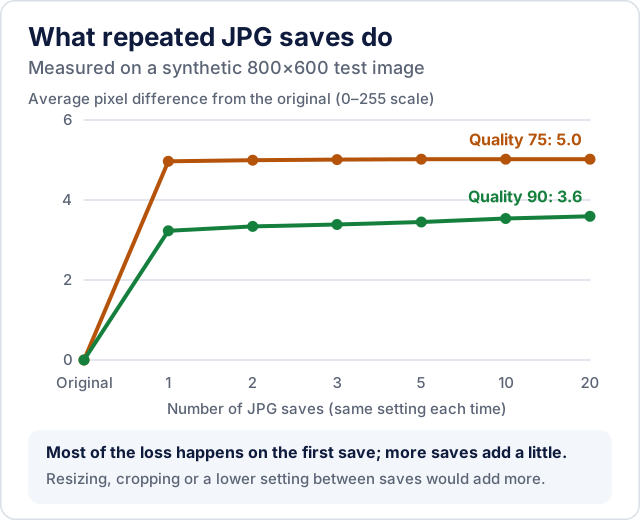
JPG and JPEG are the same format - different file extensions, identical encoding. JPG uses lossy compression, which means it permanently discards some pixel data to reduce file size. The effect is usually invisible at high quality settings, but it accumulates if you re-save a JPG repeatedly. JPG doesn't support transparent backgrounds.
JPG is the most universally supported image format. Every browser, email client, messaging app, and document editor handles it without any issues.
PNG
PNG uses lossless compression, which means no pixel data is thrown away. What you save is exactly what you get back. PNG also supports full transparency (including semi-transparent pixels), which makes it the right choice for logos, icons, and screenshots with transparent backgrounds.
The trade-off is file size. PNG files are typically larger than JPG files for the same photographic image. For photos you're sharing or publishing online, JPG is usually more practical. For graphics where transparency or exact color reproduction matters, PNG is the better choice.
WebP
WebP is Google's format, designed for the web. It supports both lossy and lossless compression, handles transparency, and generally produces smaller file sizes than JPG or PNG for comparable image quality. Browser support is now excellent - Chrome, Firefox, Safari, and Edge all handle WebP natively.
The catch is that older software, some email clients, and specialized desktop apps still don't recognize WebP. If you download a WebP image from a website and nothing on your computer can open it, converting to JPG is the straightforward fix.
HEIC
HEIC (High Efficiency Image Container) is Apple's default photo format for iPhones running iOS 11 and later. It's based on HEIF (High Efficiency Image Format) technology and is designed to produce files around half the size of a JPG at similar quality, though the saving varies from photo to photo. On Apple devices it works transparently. Outside of Apple's ecosystem, it's a problem.
Windows Photo Viewer and most non-Apple apps don't open HEIC without additional codecs. Sharing HEIC photos with people on Windows or Android, attaching them to emails, or uploading them to platforms that don't explicitly support HEIC usually requires converting to JPG first.
SVG
SVG is fundamentally different from the other formats here. JPG, PNG, WebP, and HEIC are all raster formats - they store images as grids of pixels. SVG stores images as vector data: mathematical descriptions of shapes, paths, and coordinates. An SVG can scale to any size without pixelation because it's not made of pixels.
Converting an SVG to PNG or JPG is called rasterization. You're rendering the vector image at a specific pixel resolution and saving the result. After conversion, it's a pixel image like any other - you can no longer scale it up without quality loss.
Format comparison at a glance
| Format | Compression | Transparency | Best for |
|---|---|---|---|
| JPG | Lossy | No | Photos, sharing, email |
| PNG | Lossless | Yes | Logos, screenshots, icons, transparency |
| WebP | Lossy or lossless | Yes | Web images, reducing page weight |
| HEIC | Lossy | No (typically) | iPhone camera photos |
| SVG | Vector (no pixel compression) | Yes | Logos, icons, illustrations that need to scale |
How to convert an image online
The general process is the same across all the CoditTools converters:
- Open the specific converter you need, for example PNG to JPG, or browse the image conversion category to find your combination.
- Click the upload area and choose your image.
- Nothing needs configuring: each converter uses fixed settings, which its page describes.
- Wait a moment. Conversion starts as soon as the file is chosen, and the processing happens locally in your browser.
- Download the converted file. It saves directly to your device.
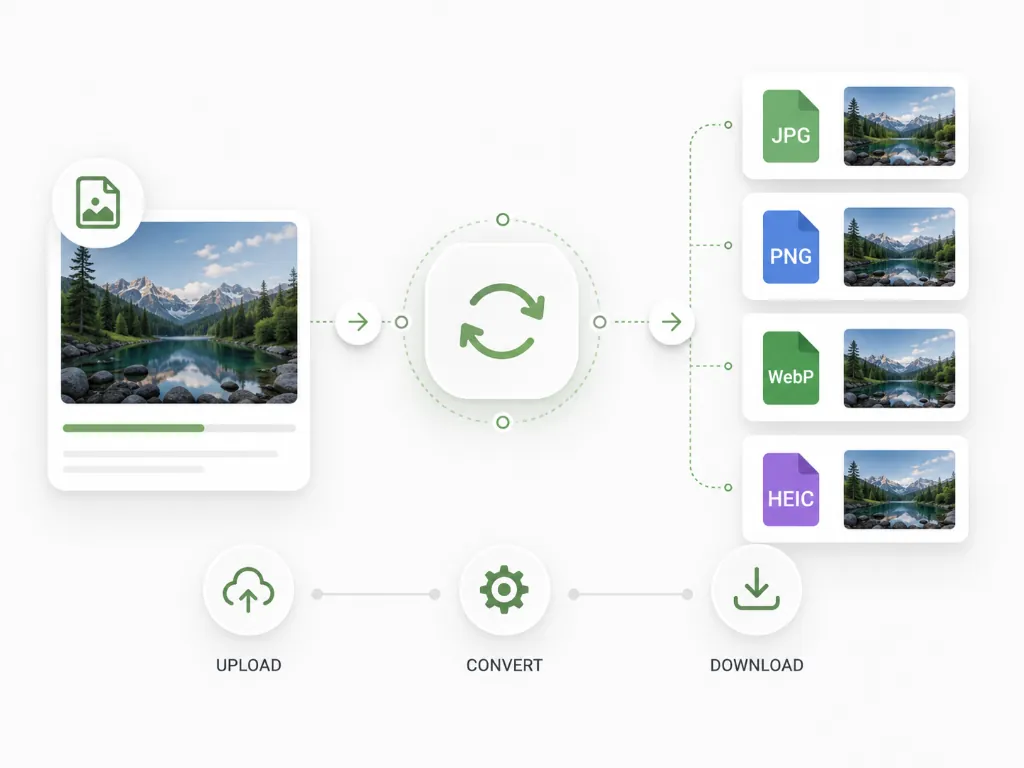
Most conversions of ordinary images finish within a few seconds. Large HEIC photos and traced SVGs take longer, depending on your device's processing speed.
How to convert PNG to JPG
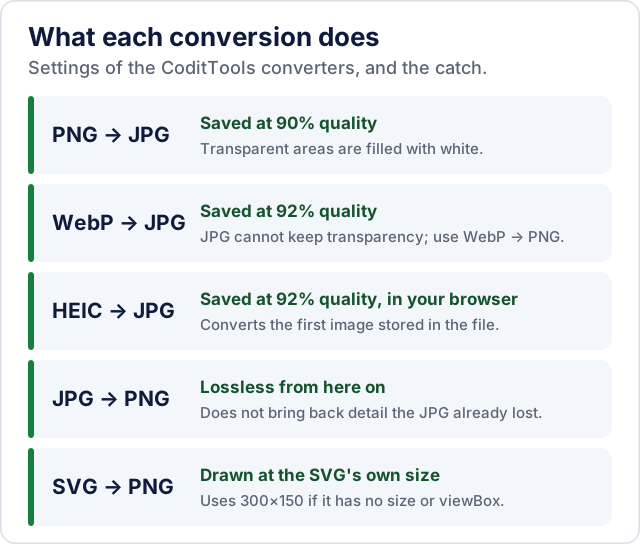
Open the PNG to JPG converter, upload your PNG, and download the result. One thing to know: JPG doesn't support transparency. If your PNG has a transparent background, the converter fills that area with white before encoding the JPG. If you want a different background color instead, you'll need to flatten the image in an editor before converting, or use an image editor that lets you set the background fill color.
The resulting JPG is encoded at 90% quality, which keeps visible quality high while reducing file size compared to lossless PNG.
How to convert JPG to PNG
Converting JPG to PNG doesn't recover lost quality. JPG is lossy, and once detail has been discarded during a JPG save, that information is gone. The PNG you get from the conversion is lossless going forward - re-saving it as PNG won't degrade it further - but it won't look sharper than the JPG source.
The main reason to convert JPG to PNG is when you need to do editing that would suffer from repeated re-compression. Working in PNG and exporting to JPG only at the final step is better practice than editing a JPG multiple times.
How to convert WebP to JPG or PNG
If you've downloaded a WebP image and your software won't open it, the WebP to JPG converter produces a standard JPG that works anywhere. The conversion encodes at 92% quality, which preserves the original visual well.
If the WebP image has transparency that you want to keep, convert to PNG instead using the WebP to PNG converter, since JPG can't carry transparent backgrounds.
Going the other direction - converting JPG to WebP or PNG to WebP - is useful when you're preparing images for a website and want smaller file sizes. Most modern browsers handle WebP without issues.
How to convert HEIC to JPG
This is one of the most common conversion needs for iPhone users. When you transfer photos from an iPhone to a Windows PC or share them with someone not on Apple devices, HEIC files often cause problems.
The HEIC to JPG converter handles the conversion in your browser using a JavaScript library (heic2any) that decodes the HEIC container and re-encodes the first image in the file as a JPEG at 92% quality. No server receives your photos. The converted JPG opens in any application that handles standard JPEG files.
If you want to keep a lossless version, the HEIC to PNG converter is also available.
How to convert SVG to PNG or JPG
When you convert an SVG using the SVG to PNG converter, the tool reads the SVG's declared width and height (or viewBox dimensions), renders the vector graphic at those pixel dimensions onto a canvas, and exports the result as PNG with transparency preserved. If the SVG has neither a width and height nor a viewBox, the tool falls back to a 300×150 canvas.
For print use or high-resolution exports, you'll want to manually resize the SVG to a larger pixel size before converting, or edit the SVG's width and height attributes to something like 3000×3000 before uploading. Converting a small SVG to a small PNG and then scaling it up afterwards defeats the purpose of having a vector source.
If you need a JPG instead of PNG, the SVG to JPG converter works the same way but encodes to JPEG rather than PNG.
Does converting an image reduce quality?
Short answer: it depends on the formats involved and which direction you're converting.
Converting between two lossless formats (for example PNG to a lossless WebP) doesn't reduce quality - every pixel is preserved exactly. The PNG to WebP converter here is not one of those: it saves lossy WebP at 90% quality. Converting from a lossless format to a lossy one (such as PNG to JPG) introduces some quality loss, though at high quality settings (90%+) the difference is usually imperceptible to the eye. Converting between two lossy formats - for example WebP to JPG - may add a small additional quality reduction, since you're re-encoding already-compressed data.
Where people go wrong is re-saving JPGs repeatedly. Each round-trip through lossy compression removes more detail. The practical advice: keep your working files in a lossless format (PNG or your camera's RAW format) and export to JPG only when you need to share or publish. Don't convert back and forth.
Which format should you use?
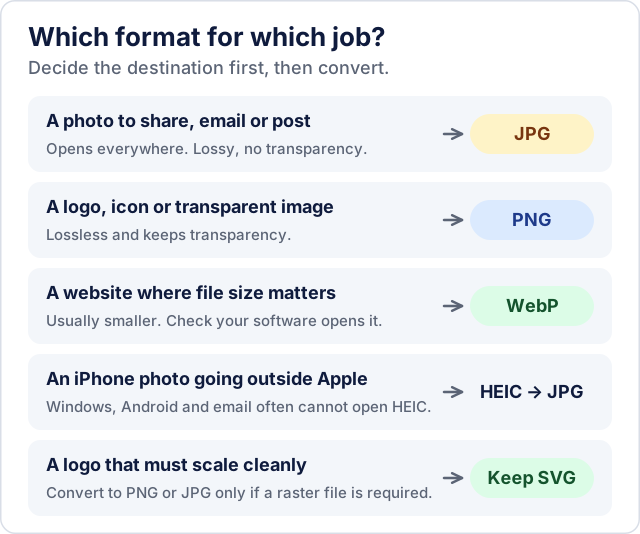
For photographs you're sharing or posting online: JPG. It's compatible everywhere and keeps file sizes manageable.
For logos, icons, screenshots, or anything with a transparent background: PNG. The lossless compression keeps edges clean and the transparency is preserved.
For images on a website where you control the tech stack: WebP. You'll get smaller file sizes than JPG or PNG, which translates to faster load times. Make sure your hosting and any image-related software actually supports WebP before committing.
For photos that will stay within Apple's ecosystem: HEIC works well. For anything that needs to go outside - Windows users, email attachments, social platforms - convert to JPG.
For logos and icons that need to scale cleanly: keep the SVG. Convert to PNG or JPG only when the destination specifically requires a raster file.
Browser-based conversion and privacy
Many online converters upload your files to a remote server, process them there, and then let you download the result. That means your image data travels across the internet and sits on someone else's hardware, at least briefly.
CoditTools converts images entirely client-side. When you upload a file, it's read by JavaScript running in your own browser tab. No data is sent to any server. This matters when you're working with anything sensitive - client photos, images containing personal information, internal documents, or anything you'd prefer not to pass through a third party's infrastructure.
You can verify this by opening your browser's network tab (F12 → Network) and checking that no file upload requests are made when you click Convert.
Converting multiple images at once
The individual converters handle one file at a time. If you have many images to convert - a set of HEIC photos from a trip, a batch of product shots to convert to WebP - the bulk image converter lets you upload multiple files, choose your target format, and download all the converted files in a single ZIP. It supports JPG, PNG, WebP, AVIF, GIF, BMP, HEIC, and SVG as input formats, and can export to JPG, PNG, WebP, and SVG, plus AVIF in browsers that can create it.
Common conversion mistakes
Just renaming the file extension. Changing a file from photo.jpg to photo.png does not convert it. The file contents remain JPEG-encoded. Real conversion means re-encoding the image data into the new format's structure.
Expecting PNG to be smaller than JPG for photos. PNG's lossless compression actually produces larger files for photographic images with lots of color variation. JPG's lossy compression is specifically designed for that type of content. If file size is the goal, JPG or WebP will be smaller for most photos.
Converting SVG at a small pixel size. If you need a high-resolution PNG from an SVG logo for print or a large display, make sure the pixel dimensions match your intended use. A 300×300 PNG from a logo SVG will look blurry at any size above a small thumbnail.
Re-saving JPGs in editing tools. Every time a JPG is opened, edited, and saved, the lossy compression runs again and removes more detail. Keep source files in a lossless format and export to JPG only when you're done editing.
Assuming WebP works everywhere. Desktop browser support is excellent, but some older email clients and certain desktop applications still don't handle WebP. When compatibility is more important than file size, JPG is the safer option.
If reducing file size is your main goal rather than changing formats, the image tools section includes a dedicated image compressor that gives you more control over quality settings without switching formats.
Frequently asked questions
What is an image converter?
An image converter changes an image from one file format to another - for example, from PNG to JPG, or from HEIC to JPG. The visual content stays the same, but the encoding method changes, which affects file size, compatibility, and supported features like transparency.
What is the best format for website images?
WebP is generally the best choice for website images because it produces smaller file sizes than JPG or PNG at comparable quality, and browser support is now excellent. If you need a fallback for older software or wider compatibility, JPG works everywhere and is a safe default for photos.
How do I convert PNG to JPG?
Upload your PNG to the PNG to JPG converter. The tool encodes it as JPEG at 90% quality and gives you a download link. Note that transparent areas in the PNG will be filled with white in the resulting JPG, since JPEG doesn't support transparency.
How do I convert WebP to JPG?
Use the WebP to JPG converter. Upload the WebP file, and the tool renders it onto a canvas and exports it as JPEG at 92% quality. The result opens in any application that handles standard JPEG files.
How do I convert HEIC photos to JPG?
Open the HEIC to JPG converter, upload your HEIC file, and download the JPEG. The conversion runs in your browser using the heic2any library. Your photos are never uploaded to a server.
Does converting JPG to PNG improve quality?
No. Converting a JPG to PNG doesn't recover any quality that was lost when the JPG was originally saved. PNG is lossless going forward - further saves won't degrade it - but it can't restore detail that the JPG compression already discarded.
Does converting an image always reduce quality?
No. Converting between two lossless formats (such as PNG to lossless WebP) preserves every pixel. Quality loss only occurs when the output format is lossy - for example JPG, or the lossy WebP that the PNG to WebP converter here produces. Even then, at high quality settings the difference is usually invisible to the eye.
Can I convert images without uploading them to a server?
Yes. CoditTools image converters run entirely in your browser. Your files are read locally by JavaScript and never sent to any server. You can verify this with your browser's developer tools.
Is WebP better than JPG?
For web use, WebP usually produces smaller files than JPG at equivalent visual quality, which is an advantage for page load times. JPG has broader compatibility, particularly with older software and email clients. Which is "better" depends on your specific situation - compatibility requirements, the software your audience uses, and whether file size or universal support is your priority.
Can SVG be converted to JPG?
Yes, using the SVG to JPG converter. The SVG is rendered at its declared pixel dimensions and saved as a JPEG. After conversion it's a pixel image, so it can't be scaled up cleanly the way the original SVG can.
What is the difference between JPG and JPEG?
There is no difference. JPEG is the full name of the format (Joint Photographic Experts Group). JPG is the three-letter file extension used on older Windows systems where four-letter extensions weren't supported. Both refer to exactly the same image encoding format.
Can I convert multiple images at once?
Yes. The bulk image converter accepts multiple files, converts them to your chosen format, and delivers all the results in a single ZIP download. It supports JPG, PNG, WebP, AVIF, GIF, BMP, HEIC, and SVG as input formats.
Try the tools mentioned in this post - all free, no account needed.
Runs in your browser. No watermarks. No file uploads to a server.
Browse image tools →