How to Compress Images Online: Quality, Target Size and Formats
Choose an image quality, compress to a target such as 200 KB or 20 KB, pick JPG, PNG or WebP, and see what the CoditTools compressor does to each format.
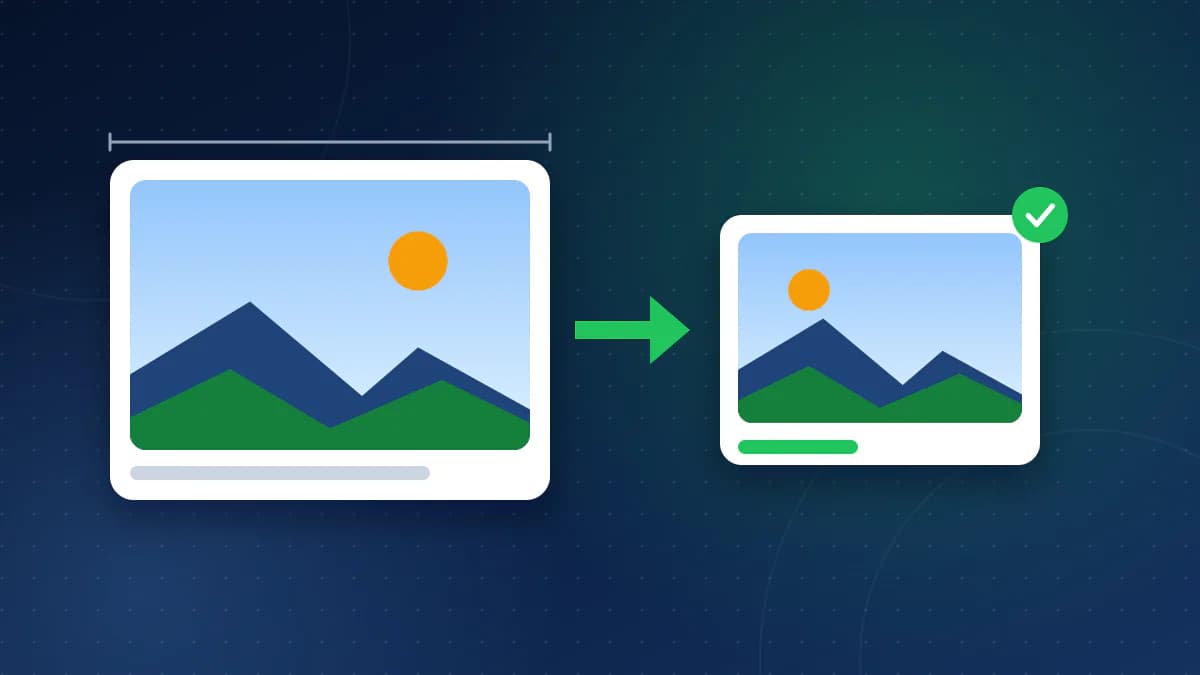
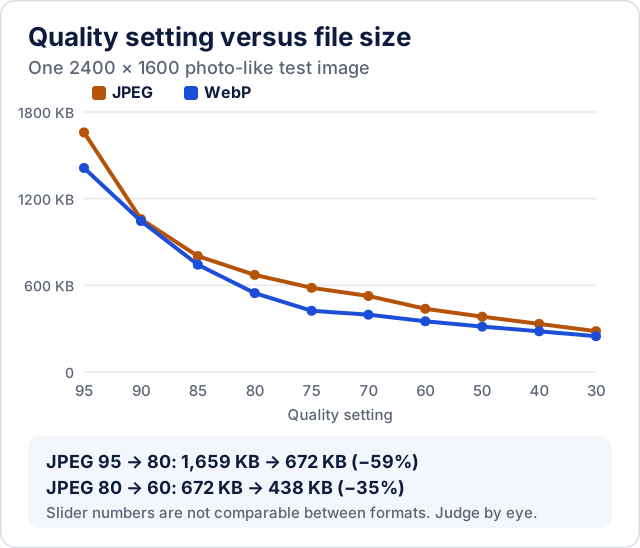
Two settings decide an image's file size: its quality (how much detail the encoder may discard) and its dimensions (how many pixels there are). Lowering the quality of a JPG or WebP from the camera's near-maximum to the 70s usually shrinks it a lot with little visible change. Lowering the quality further only goes so far; to reach a small limit such as 100 KB or 20 KB you normally have to reduce the dimensions as well.
This guide explains how to choose a quality, how to hit a specific file size, which format to use, and what the CoditTools Image Compressor does with each kind of file.
Lossy and lossless compression
- Lossy compression (JPG, lossy WebP, AVIF) throws away detail you are unlikely to notice, such as fine texture and subtle colour variations. You choose how much with a quality number. The loss is permanent, and it adds up each time a lossy file is saved again.
- Lossless compression (PNG, lossless WebP) keeps every pixel exactly and only stores the data more efficiently. Re-saving a PNG with better compression never changes the image, but it saves much less, because the pixels themselves are unchanged.
That is why a photo saved as PNG is huge and a screenshot of text saved as JPG looks smudged: each format is good at a different kind of image.
Choosing a quality setting
Quality numbers are a scale for one encoder, not a percentage of the original quality. "80" in one program is not "80" in another, and a WebP at 80 is not the same as a JPG at 80. Treat the number as a starting point and judge the result by eye.
- Start around 70–80 for photos shown on a website or sent in a message. The CoditTools compressor defaults to 72%.
- Look at the result at 100% zoom on the areas that show damage first: smooth gradients such as sky, skin, fine text and sharp edges.
- If you see blocky patches, colour banding or halos around edges, raise the quality by 5–10 and compare again. If it looks identical, try lower.
Always compress from the best copy you have. Re-compressing a JPG that has already been compressed stacks a second round of loss on top of the first, for a smaller saving than you would get from the original.
Compressing to a specific size (200 KB, 100 KB, 20 KB)
Many forms reject files above a limit: an application portal that accepts photos up to 200 KB, a government site that wants a 20–50 KB passport photo, or an email system with an attachment cap. For JPG, WebP and HEIC files, the compressor's target size mode does the trial and error for you:
- Pick a target: 20, 50, 100, 200 or 500 KB.
- The tool searches for the highest quality whose output fits under the target, between 95% and 30%, testing at most eight quality levels. You get the best-looking version that fits, not just any version that fits.
- If the image is already under the target, it is left as it is.
- If even 30% quality is too big, the result is marked "Target not reached".
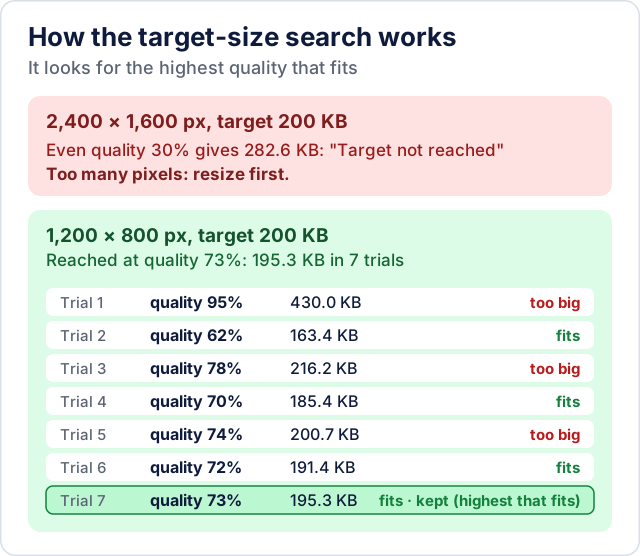
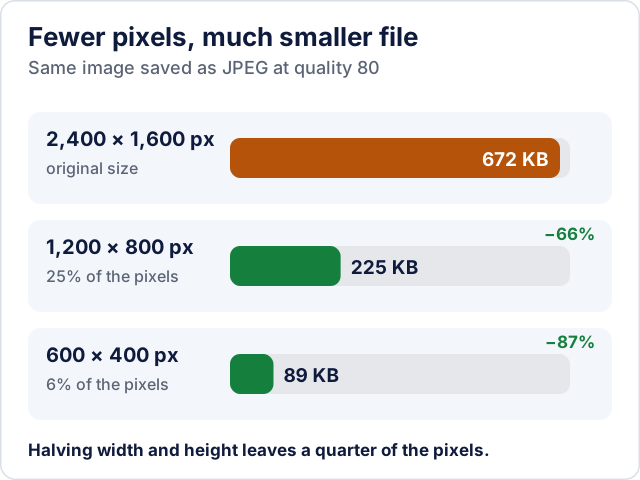
"Target not reached" means the image has too many pixels for that size. The compressor does not change dimensions, so resize first with the image resizer and compress the smaller image. Halving both the width and the height leaves a quarter of the pixels, which usually brings the file size down by a similar factor. For a passport-style photo or a profile picture, a few hundred pixels on each side is often plenty, and a 20 KB target becomes easy.
Check the form's other requirements too. Size limits often come with required pixel dimensions or a file type such as JPG only.
Which format should you use?
| Image | Good format | Why |
|---|---|---|
| Photos for websites | WebP, or JPG for maximum compatibility | Lossy formats are far smaller for photos. Google reports lossy WebP files are 25–34% smaller than comparable JPGs at the same measured quality. |
| Photos for forms, email and printing services | JPG | Accepted everywhere; some upload forms still reject WebP. |
| Screenshots, logos, diagrams, text | PNG (or lossless WebP) | Sharp edges and flat colours compress well losslessly and get blurry with lossy formats. |
| Images that need transparency | PNG or WebP | JPG has no transparency. |
| iPhone HEIC photos | JPG | HEIC is compact, but many websites and Windows apps can't open it. |
To change format, use the image converters; for example JPG to WebP for a website or HEIC to JPG for an upload form.
What the CoditTools Image Compressor does with each file type
The compressor re-encodes the image in your browser; the file is not uploaded. The quality slider runs from 30% to 95%, and the tool treats each format differently:
| Input | What happens |
|---|---|
| JPG, WebP | Re-encoded at your quality setting or to your target size, in the same format |
| PNG | Recompressed losslessly: every pixel stays the same, so the quality slider and target sizes don't apply |
| HEIC (iPhone) | Saved as JPG, because few websites accept HEIC; the JPG can be larger than the HEIC |
| AVIF | Re-encoded only in browsers that can create AVIF files; otherwise kept unchanged |
| Animated WebP or PNG | Kept as they are, because re-encoding would keep only the first frame |
If the re-encoded file would be larger than the original, which happens with images that are already well compressed, the tool keeps your original and tells you so instead of giving you a bigger file. The pixel dimensions never change.
Compressed files do not carry over the original's EXIF metadata, such as the camera model, the date and GPS location (the lossless PNG recompression drops PNG text and EXIF chunks too). That is useful before you share a photo publicly; keep the original if you need that information. When the tool keeps your original because compression wouldn't help, that file is untouched, metadata included.
Compressing many images at once
For a folder of product photos or blog images, the Bulk Image Compressor applies the same quality or target size to every file and gives you a ZIP. Files that can't be made smaller are kept as originals, and any file that fails is listed while the rest are still packed. Resize the batch first if your images are much larger than they will be displayed.
Common reasons the result disappoints
- The file hardly shrank. It was probably compressed already (many images from websites and messaging apps are), or it is a PNG, where only lossless savings are possible.
- The image looks blocky or blurred. The quality is too low for that image, or it is a screenshot or graphic that should stay PNG.
- The target can't be reached. Too many pixels: resize, then compress.
- Edges or text look fuzzy after conversion to JPG. Text and line art suffer most from lossy compression; keep them in PNG or raise the quality.
- A transparent background turned white. JPG can't store transparency; use PNG or WebP if you need it.
Try the tools mentioned in this post - all free, no account needed.
Runs in your browser. No watermarks. No file uploads to a server.
Browse image tools →