How to Make a QR Code: What It Stores, Error Correction and Print Size
What a QR code stores, how content length sets its size, which error-correction level to pick and how large to print it, with real numbers.
A QR code is a square barcode that stores a short piece of text, most often a web address, as a grid of dark and light squares called modules. A phone camera decodes that text and acts on it: it opens the link, offers to save the contact, or joins the WiFi network. You can make one free in a browser in under a minute; the decisions that actually matter are how much you put in it, which error-correction level you choose, and how large you print it.
This guide uses real numbers from the same QR library the CoditTools QR Code Generator runs on, so you can see how each choice changes the code you get.
What a QR code stores, and what that means for you
A QR code stores text and nothing else. A link, a contact card or a WiFi login is simply text written in a format that phone cameras recognise:
- Website link:
https://example.com/menu. A code for a YouTube video or an Instagram profile is the same thing: it contains that page's URL. - WiFi network:
WIFI:T:WPA;S:Cafe Guest;P:espresso-2026;;(security type, network name, password). Phones offer to join the network when they scan it. - Contact card (vCard): several lines starting with
BEGIN:VCARDthat hold the name, phone, email and website. This is what people mean by a QR code for a visiting card or business card. - Location:
geo:48.8584,2.2945, which opens the point in a map app. - Email, phone call or text message:
mailto:,tel:andSMSTO:strings that open a draft or the dialer.
Two practical consequences follow. First, the code can't be changed after it is printed, because the content is the pattern itself. Second, it never expires and nothing is tracked: there is no server in between, so scanning it does not contact the generator that made it. The codes created on CoditTools are of this kind, which is usually called a static QR code.
The alternative, a dynamic QR code, is sold by subscription services: the code holds a short link to the service's server, which redirects to your real address. That lets you change the destination and count scans, but the code stops working if the service shuts down or your subscription ends. If you want a changeable destination without that dependency, put a short URL on a domain you control into a static code, and change where that URL redirects instead.
How much you put in decides how dense the code is
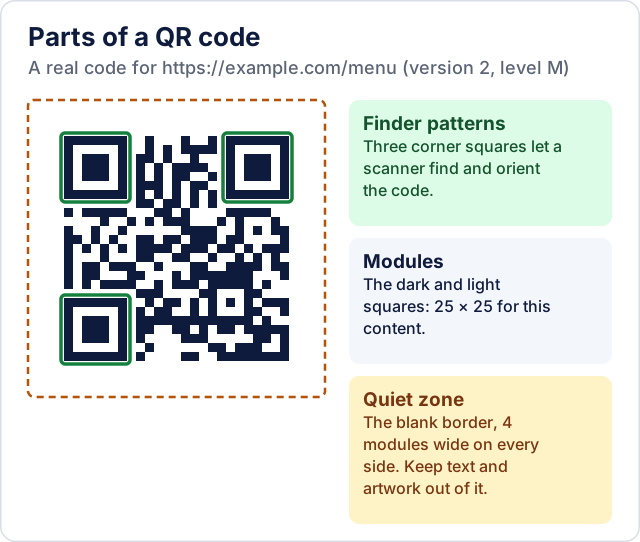
QR codes come in 40 sizes called versions. Version 1 is 21 × 21 modules and each version adds 4 modules per side, up to 177 × 177 for version 40. The generator automatically picks the smallest version that fits your content, so longer content gives you a denser code with smaller squares.
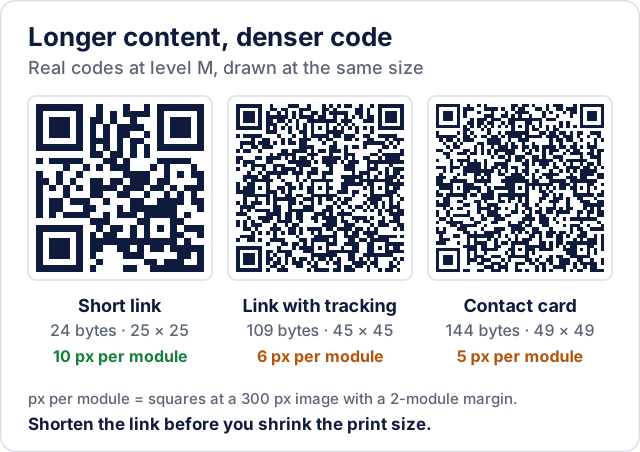
Here is what that looks like for realistic content, using the qrcode library that the CoditTools generator uses:
| Content | Length | Level L | Level M | Level Q | Level H |
|---|---|---|---|---|---|
Short link: https://example.com/menu | 24 bytes | v2 (25×25) | v2 (25×25) | v3 (29×29) | v3 (29×29) |
| WiFi network (name and password) | 41 bytes | v3 (29×29) | v3 (29×29) | v4 (33×33) | v5 (37×37) |
| Link with tracking (UTM) parameters | 109 bytes | v6 (41×41) | v7 (45×45) | v9 (53×53) | v10 (57×57) |
| Contact card: name, company, phone, email, website | 144 bytes | v7 (45×45) | v8 (49×49) | v10 (57×57) | v12 (65×65) |
| 300 characters of plain text | 300 bytes | v11 (61×61) | v13 (69×69) | v16 (81×81) | v18 (89×89) |
The tracking parameters in the third row more than double the module count of a plain link. If a code will be printed small, shorten the link first: a code for a 24-byte link has about a third as many modules as one for a 109-byte link at the same level.
At the extremes, a version 1 code holds at most 17 bytes at level L and 7 at level H, and a version 40 code holds 2,953 bytes at level L and 1,273 at level H. In practice you should stay far below the maximum, because a code with thousands of tiny modules is hard to scan.
Choosing an error-correction level
QR codes contain redundant data so that a scanner can still read a code that is scratched, dirty or partly covered. There are four levels, which can restore roughly 7% (L), 15% (M), 25% (Q) and 30% (H) of the data. More redundancy means more modules for the same content, as the table above shows.
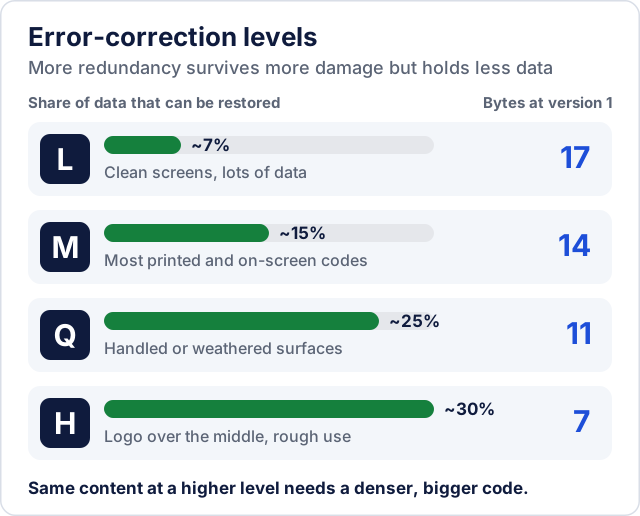
Denso Wave, the company that invented the QR code, describes M as the most frequently selected level, Q or H for environments where codes get dirty, such as factories, and L for clean environments with a lot of data. Applied to everyday uses:
- M for most things: menus, posters, flyers, slides, websites.
- Q or H for codes that will be handled, folded or exposed to weather (packaging, outdoor signs, stickers), and if you plan to place a logo over the middle in a design program, because the logo covers modules that the error correction must make up for. (The CoditTools generator itself does not add logos.)
- L when the content is long and the code will be shown on a clean screen or high-quality print, to keep it as small as possible.
How large to make it
What a scanner needs is modules large enough for the camera to resolve, plus a clear border. Two rules come from the QR standard itself, as explained on Denso Wave's page on code size:
- Quiet zone: the specification calls for a blank margin four modules wide on every side. Many phone apps cope with less, but text or artwork crowding the code is a common reason it fails to scan.
- Physical size = modules × module size. Denso Wave's worked example uses 0.254 mm modules: a version 3 code (29 modules) is then about 7.4 mm across, or about 9.4 mm including the quiet zone. That is fine for a label read at arm's length and far too small for a poster read from across a room.
So instead of a fixed minimum size in centimetres, decide by module size and viewing distance, then test. If the code itself is 2 cm wide, the short link at level M (25 modules) gets modules of 0.8 mm, while the full contact card at level H (65 modules) gets modules of about 0.3 mm. That is why the same printed size can scan instantly for one code and not at all for another.
On screen the same logic applies to pixels. The CoditTools generator's default image is 300 pixels wide with a margin of 2 modules, which gives the short link about 10 pixels per module but the 300-character text only 3 to 4, depending on the level. The tool warns you when a module drops below about 3 pixels.
Colours, contrast and inverted codes
Scanners look for dark modules on a light background. You can use brand colours as long as the foreground is clearly darker than the background. The generator warns you when the contrast between the two colours falls below 3:1, and also when you invert the code (light modules on a dark background), because some scanner apps cannot read inverted codes. Avoid gradients and patterns behind the code, and keep the four-module border free of artwork.
PNG or SVG
The generator can save a PNG (a fixed grid of pixels, from 80 to 1,200 pixels wide) or an SVG (vector shapes that stay sharp at any size). Use SVG for anything printed, because a printer or designer can scale it to the exact physical size without blurring. Use PNG for websites, documents and messages; if you will scale it up later, generate it at a larger pixel size rather than enlarging a small image, because enlarging blurs the module edges.
Making a code with the CoditTools generator
- Open the QR Code Generator and choose the content type: website link, WiFi network, contact card (vCard), email, phone number, text message, map location or plain text.
- Fill in the fields. The tool builds the correctly formatted text for you; for WiFi, for example, it escapes special characters in the network name and password, which is easy to get wrong by hand.
- Choose the error-correction level, size, margin and colours, and read any warnings shown under the preview.
- Download the PNG or SVG.
- Scan the downloaded file with at least two phones, ideally one iPhone and one Android phone, before you print anything. Check that the link opens the right page, the contact saves with every field, or the phone actually joins the WiFi network.
The code is generated in your browser, so the WiFi password or contact details you type are not sent to a server. For linear barcodes such as EAN-13 or Code 128, use the barcode generator instead; QR codes and retail barcodes are not interchangeable.
Try the tools mentioned in this post - all free, no account needed.
Runs in your browser. No watermarks. No file uploads to a server.
Browse image tools →