Robots.txt Explained: What It Does, How to Write One, and How to Generate It Free
What robots.txt does and can't do, how to write User-agent, Disallow, Allow and Sitemap rules, common mistakes, and how to generate a file free online.
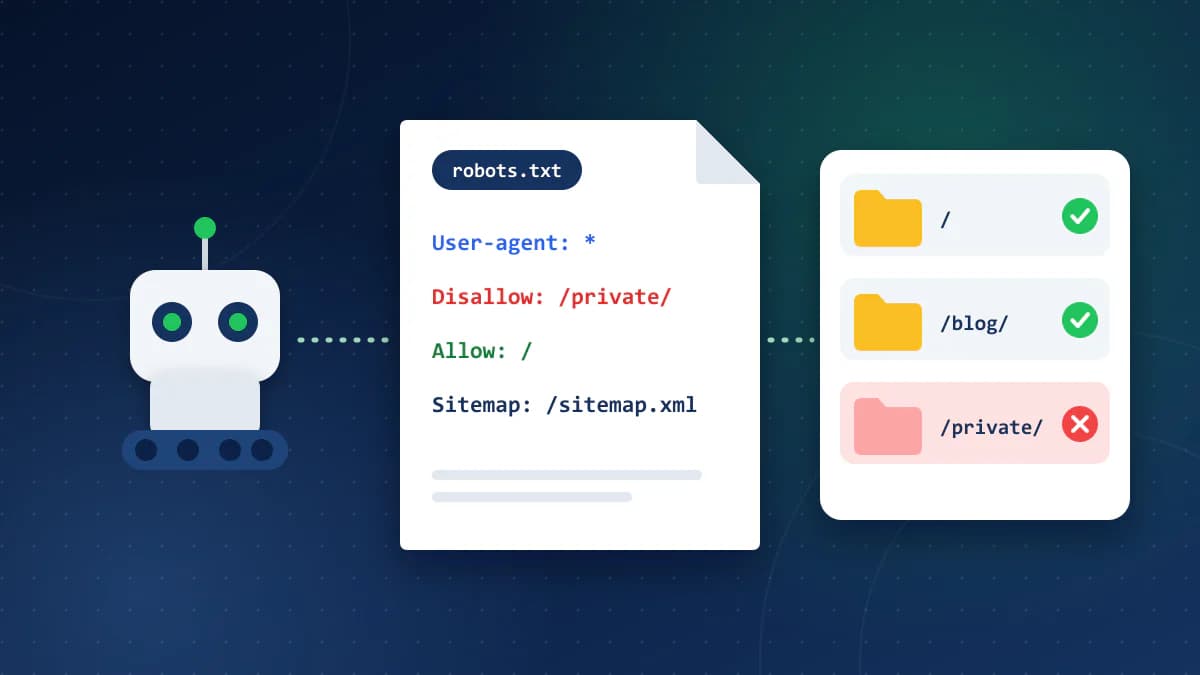
A robots.txt file is a plain text file that sits at the root of your website and tells search engine crawlers which URLs they are allowed to request. Every time Googlebot, Bingbot, or any other compliant crawler visits a site, the first thing it does is check for this file at https://yoursite.com/robots.txt. If it finds one, it reads the rules before crawling anything else. If it doesn't find one, it assumes everything is fair game.
That one-paragraph summary is the answer most people are looking for. The rest of this guide covers the specifics: how the file actually works, what each directive means, where people get tripped up, and how to generate a correctly formatted robots.txt without writing it by hand.
What does robots.txt actually do?
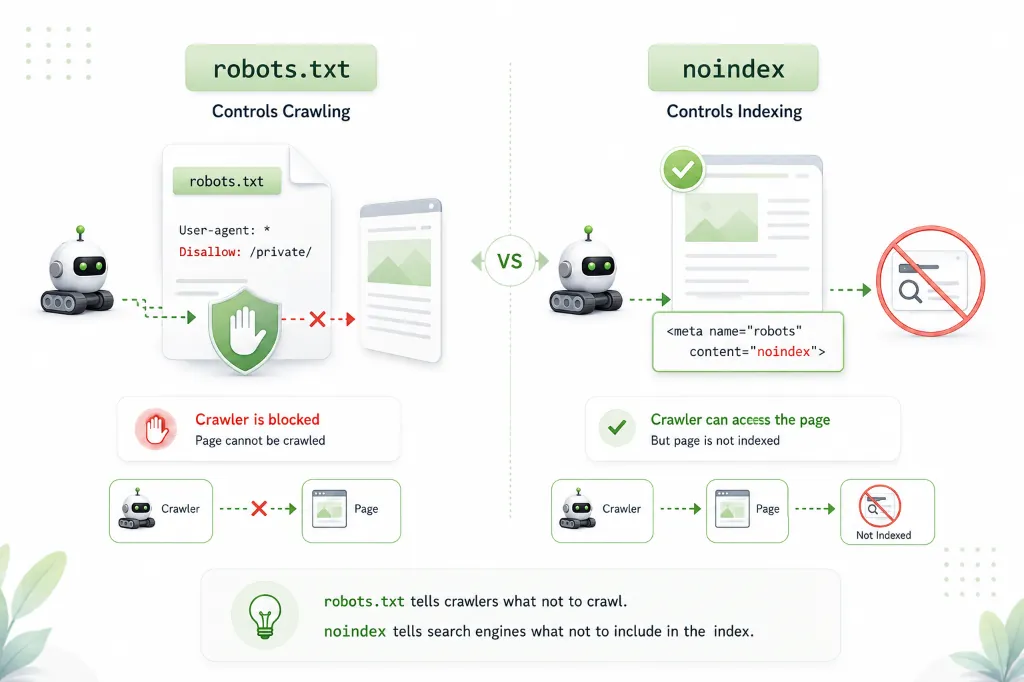
Robots.txt controls crawling, not indexing. This distinction matters more than anything else in this article, so it's worth stating clearly up front.
When you add a Disallow rule to your robots.txt, you're telling compliant crawlers: "don't request this URL." The crawler respects the instruction and skips that page. But that doesn't mean the page disappears from search results. If other websites link to that URL, Google may still show it in search results based on those external signals - it just won't have crawled the page content itself.
What robots.txt can do:
- Tell crawlers to stay out of specific directories (admin panels, staging areas, internal search results)
- Reduce unnecessary crawl traffic on large sites by steering bots toward important content
- Point crawlers to your sitemap
- Give different instructions to different bots (Googlebot vs. Bingbot vs. AI crawlers)
What robots.txt cannot do
This is where most confusion starts, so it's worth being direct:
- It cannot prevent indexing. A URL blocked by robots.txt can still appear in Google's search results if other sites link to it. You'll see it listed with the note "A description for this result is not available because of this site's robots.txt." To actually prevent indexing, use a
noindexmeta tag on the page itself. - It cannot protect private content. Robots.txt is a publicly readable file. Anyone - including malicious bots - can open
yoursite.com/robots.txtand see exactly which paths you're trying to hide. It's a voluntary protocol, not a security mechanism. Sensitive content needs authentication (login walls), not a Disallow rule. - It cannot remove an already-indexed page. If Google has already crawled and indexed a page, adding a Disallow rule for that page prevents future crawling but doesn't trigger removal from the index. To remove an indexed page, you need a
noindextag (which the crawler has to be able to see, meaning the page must remain crawlable) or a removal request through Google Search Console. - It cannot force bots to crawl something. Robots.txt only restricts. There's no directive that makes crawlers visit a URL. That's what your sitemap and internal linking are for.
Where does robots.txt go?
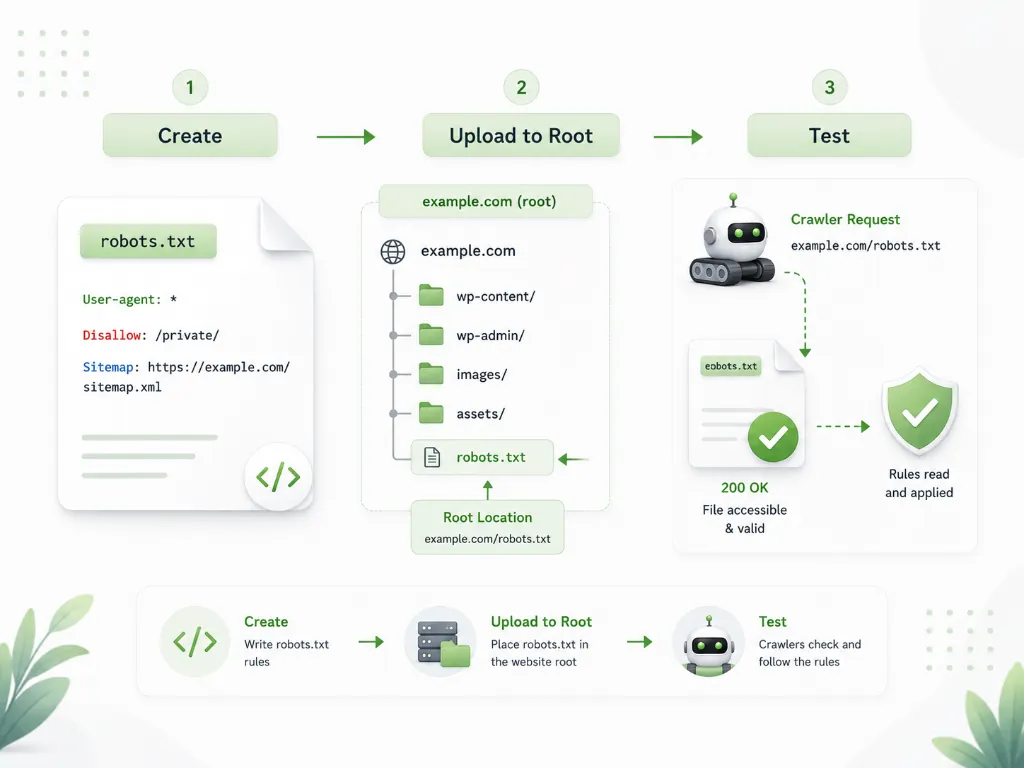
The file must be placed at the root of your domain: https://example.com/robots.txt. Not in a subfolder, not renamed, not on a different subdomain. Crawlers only check that exact location.
A few things to note about placement:
- Each subdomain needs its own robots.txt. A file at
https://www.example.com/robots.txtdoesn't apply tohttps://blog.example.com. - HTTP and HTTPS are treated as separate origins. If your site redirects HTTP to HTTPS, make sure the robots.txt is accessible on the HTTPS version.
- The filename is case-sensitive on most web servers. Use lowercase:
robots.txt, notRobots.txtorROBOTS.TXT.
Understanding robots.txt syntax
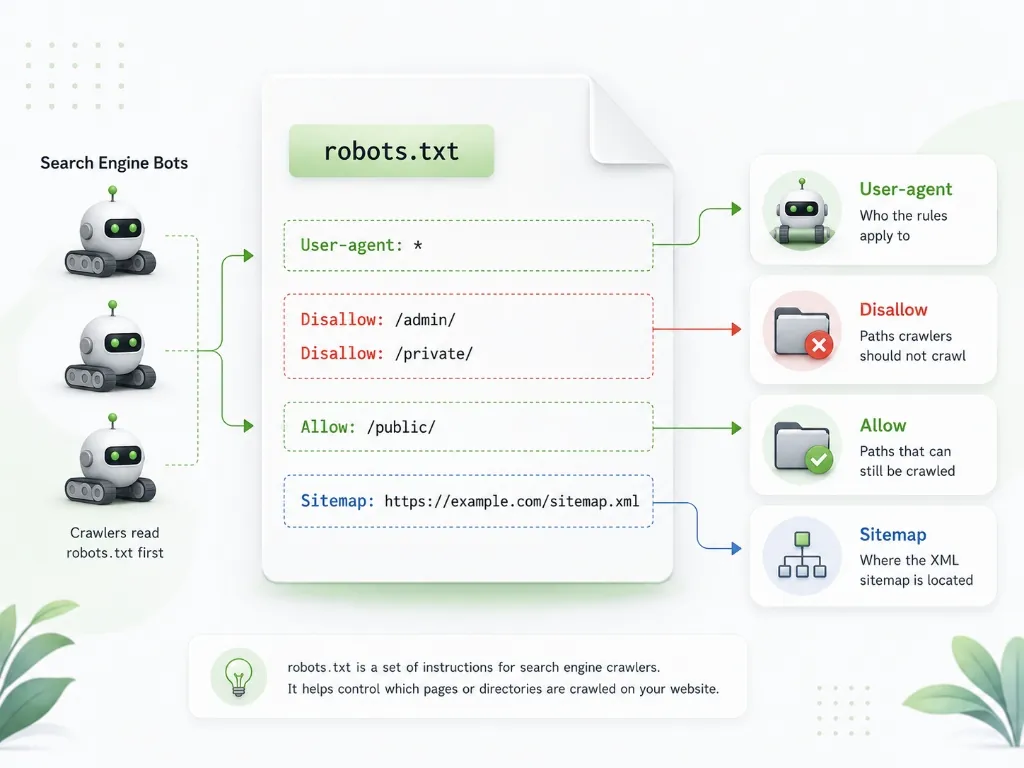
A robots.txt file is made up of one or more "groups." Each group starts with a User-agent line that specifies which crawler the following rules apply to, followed by one or more Disallow or Allow lines.
User-agent
The User-agent line identifies which bot the rules target. Use * (asterisk) to target all crawlers, or specify a particular bot by name.
User-agent: *This applies rules to every compliant crawler. To target only Google's crawler:
User-agent: GooglebotCommon user-agent names include Googlebot (Google search), Bingbot (Bing search), Googlebot-Image (Google Images), GPTBot (OpenAI), ClaudeBot (Anthropic), and CCBot (Common Crawl). Spelling and capitalization must match exactly what the bot sends in its request headers.
Disallow
Disallow tells the specified crawler not to access URLs that start with a given path.
User-agent: *
Disallow: /admin/
Disallow: /private/
This tells all bots to stay out of any URL starting with /admin/ or /private/. A blank Disallow: (with nothing after it) means "don't disallow anything" - effectively allowing everything.
To block an entire site:
User-agent: *
Disallow: /
That single forward slash blocks all URLs on the site. This is the most dangerous line you can put in a robots.txt file if you do it by accident.
Allow
Allow is used when you need to permit access to a specific path inside a broader disallowed directory. Google and Bing both support it.
User-agent: *
Disallow: /private/
Allow: /private/public-page.html
This blocks the entire /private/ directory but makes an exception for one specific file. When a more specific rule conflicts with a broader one, the more specific path wins. In this case, /private/public-page.html is more specific than /private/, so it's allowed.
Sitemap
The Sitemap directive tells crawlers where your XML sitemap is located. Unlike other directives, it's not tied to any particular user-agent - it's a standalone line, usually placed at the bottom of the file.
Sitemap: https://example.com/sitemap.xmlYou can list multiple sitemaps. This directive doesn't require crawlers to use the sitemap, but it helps them discover it. It's especially useful if you haven't submitted the sitemap through Google Search Console or Bing Webmaster Tools yet.
Wildcards in robots.txt
Google and Bing support two pattern-matching characters that aren't part of the original robots.txt standard but are widely used:
* (asterisk) matches any sequence of characters. For example:
Disallow: /search?*q=This blocks any URL containing /search? followed by any characters and then q= - useful for blocking internal search result pages with query parameters.
$ (dollar sign) matches the end of a URL. For example:
Disallow: /*.pdf$This blocks any URL ending in .pdf but wouldn't block /file.pdf/download because the URL doesn't end at .pdf.
Not all crawlers support wildcards. Googlebot and Bingbot do. Some smaller or older crawlers may not. If you're writing rules for a specific non-major crawler, check its documentation before relying on wildcards.
Common robots.txt examples
Allow everything (default behavior)
User-agent: *
Allow: /
This explicitly allows all crawlers to access everything. It has the same effect as an empty file or no file at all, but it makes your intent clear.
Block admin and login areas
User-agent: *
Disallow: /admin/
Disallow: /wp-admin/
Disallow: /login/

Sitemap: https://example.com/sitemap.xml
A common setup for most websites. Keeps crawlers out of backend pages that shouldn't appear in search results while pointing them to the sitemap.
Block a specific bot entirely
User-agent: GPTBot
Disallow: /

User-agent: *
Allow: /
This blocks OpenAI's GPTBot from crawling anything on the site while allowing all other crawlers full access. Each user-agent group is separated by a blank line.
Block internal search results and parameters
User-agent: *
Disallow: /search
Disallow: /*?sort=
Disallow: /*?filter=

Sitemap: https://example.com/sitemap.xml
Prevents crawlers from indexing thousands of filtered and sorted variations of the same content - a common crawl budget problem on e-commerce sites.
Robots.txt for WordPress
WordPress generates a virtual robots.txt file automatically. If you visit yoursite.com/robots.txt on a WordPress site, you'll see a basic file even if you never created one. WordPress's default typically allows crawling of everything except /wp-admin/ (while permitting /wp-admin/admin-ajax.php, which themes and plugins need).
To customize it, you have a few options:
- SEO plugin editors: Yoast SEO, Rank Math, and All in One SEO each include a robots.txt editor in their settings. This is the easiest approach and doesn't require FTP access.
- Physical file: Create a
robots.txtfile and upload it to your WordPress root directory (the same folder wherewp-config.phplives). A physical file overrides the virtual one. - wp_robots filter: Developers can use WordPress hooks to modify the virtual file programmatically.
One WordPress-specific issue to watch: the "Discourage search engines from indexing this site" checkbox under Settings → Reading. This adds a noindex header and modifies the virtual robots.txt to disallow everything. It's meant for development sites, but people occasionally leave it checked on production sites and can't figure out why Google isn't indexing anything.
How Googlebot reads robots.txt
When Googlebot visits your domain, it requests /robots.txt and the response determines what happens next:
| HTTP Status | What Googlebot does |
|---|---|
| 200 (OK) | Reads and follows the rules in the file |
| 3xx (Redirect) | Follows up to 5 redirect hops; if it lands on a 404, treats it as "no restrictions" |
| 404 (Not Found) | Assumes no restrictions - crawls everything |
| 5xx (Server Error) | Pauses crawling temporarily and retries; after ~30 days of failures, treats the site as fully crawlable |
This means a server error on your robots.txt can temporarily halt Googlebot from crawling your site. If your server is intermittently returning 500 errors on /robots.txt, Googlebot may slow down or stop crawling entirely until it gets a clean response.
How to generate a robots.txt file with CoditTools
Writing robots.txt by hand is straightforward if you know the syntax, but a typo in this file can have outsized consequences. An extra space, a missing slash, or an accidentally broad Disallow rule can block Googlebot from your entire site. A generator removes that risk.
The CoditTools robots.txt generator works like this:
- Pick a starting point. The tool offers four presets: Allow All, Block All, Block Admin (blocks
/admin,/wp-admin, and/login), and Custom/Reset. Start with the preset closest to what you need and adjust from there. - Set the User-agent. Type the bot name the rules apply to. Use
*for all bots, or enter a specific name likeGooglebot,Bingbot, orGPTBot. - Add Allow and Disallow rules. Choose the directive type, enter the path, and add it. The tool normalizes paths (adds leading slashes if missing) and prevents duplicates.
- Set optional fields. Add a Crawl-delay value (note: Google ignores Crawl-delay entirely - only some crawlers like Bing may honor it) and your Sitemap URL.
- Preview, copy, or download. The output panel shows the formatted file in real time. Copy the text or download it as a file, then upload it to your site's root directory.
One thing to know: the tool generates one user-agent group at a time. If you need different rules for different bots, generate each group separately, then combine them into a single file. This is a deliberate design choice - it keeps the interface simple and reduces the chance of rule conflicts.
Crawling vs. indexing: the critical distinction
This concept comes up repeatedly because it's the source of most robots.txt misunderstandings.
Crawling is when a search engine bot visits a URL and downloads its content. Indexing is when the search engine processes that content and adds it to its search database so it can appear in search results.
Robots.txt controls crawling. It does not control indexing. To control indexing, you need:
- A
<meta name="robots" content="noindex">tag in the page's HTML head - Or an
X-Robots-Tag: noindexHTTP response header
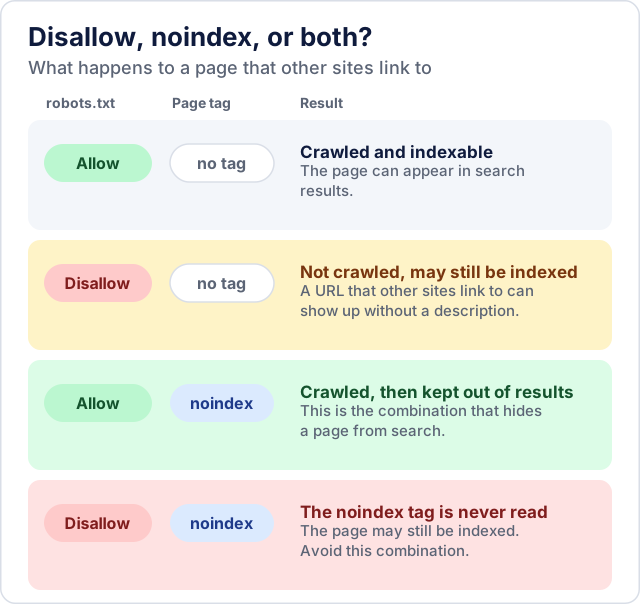
Here's the catch: if you block a page in robots.txt AND add a noindex tag to it, the noindex tag won't work. Googlebot can't see the noindex tag because it's not allowed to crawl the page. The page may end up indexed anyway (without its content) based on external links. If you want a page out of search results, it must be crawlable so the bot can read the noindex directive.
Robots.txt vs. noindex
| Feature | Robots.txt Disallow | Noindex meta tag |
|---|---|---|
| What it controls | Whether crawlers can request the URL | Whether the page appears in search results |
| Prevents indexing? | No - page may still appear in results if linked externally | Yes - reliably keeps the page out of search results |
| Where it goes | Single file at your domain root | On each individual page (in HTML or HTTP header) |
| When to use | Manage crawl traffic, keep bots out of admin areas or duplicate pages | Prevent specific pages from appearing in search results |
Use Disallow when you want to manage what crawlers spend time on. Use noindex when your actual goal is keeping a page out of search results.
How to add your sitemap to robots.txt
Adding a Sitemap line to your robots.txt is one of the easiest ways to help search engines discover your sitemap. Place it at the bottom of the file, outside of any user-agent group:
User-agent: *
Allow: /

Sitemap: https://example.com/sitemap.xml
The URL must be the full, absolute URL - not a relative path. You can list multiple sitemaps if your site has more than one:
Sitemap: https://example.com/sitemap.xml
Sitemap: https://example.com/news-sitemap.xml
This doesn't replace submitting your sitemap through Google Search Console, but it serves as a backup discovery mechanism and helps other search engines that might not have a webmaster tools interface.
AI crawlers and robots.txt
Since 2023, website owners have increasingly used robots.txt to control whether AI companies can crawl their content for training data. The major AI crawlers have published their user-agent names so site owners can block them if they choose:
GPTBot- OpenAI's training crawlerChatGPT-User- OpenAI's real-time browsing agent (blocking this prevents ChatGPT from fetching your pages when users ask it to browse)Google-Extended- Google's AI training crawler (separate from Googlebot, which handles regular search)ClaudeBot- Anthropic's crawlerCCBot- Common Crawl's bot (its data is used by many AI projects)Meta-ExternalAgent- Meta's AI crawlerBytespider- ByteDance's crawler
To block AI crawlers while keeping search engine crawling intact:
User-agent: GPTBot
Disallow: /

User-agent: ClaudeBot
Disallow: /

User-agent: CCBot
Disallow: /

User-agent: *
Allow: /

Sitemap: https://example.com/sitemap.xml
A few things to keep in mind: blocking these bots is a request, not an enforcement mechanism. Reputable companies honor robots.txt, but not every scraper will. Also, the distinction between "training" crawlers and "search/retrieval" crawlers is important. Blocking GPTBot prevents your content from being used to train OpenAI's models, but blocking ChatGPT-User also prevents ChatGPT from browsing your site in real time, which may reduce your visibility in AI-powered search. Choose based on what you actually want to control.
The CoditTools robots.txt generator supports this directly - enter any AI crawler's exact user-agent name and add Disallow rules for it, just as you would for any other bot.
Common robots.txt mistakes
Blocking your entire site by accident
The most common catastrophic mistake is putting Disallow: / under User-agent: * without realizing it blocks everything. This happens frequently when someone copies a robots.txt from a staging environment to production, or when a CMS plugin sets overly aggressive defaults. If you've just deployed a robots.txt and your traffic drops off a cliff a few weeks later, check this first.
Confusing Disallow with noindex
Adding a URL to Disallow does not remove it from search results. People regularly block a page in robots.txt and then wonder why it still appears in Google. If you want it out of search results, use a noindex meta tag and make sure the page is still crawlable so the bot can see the tag.
Blocking CSS and JavaScript files
Modern search engines render pages to understand them. If you block your CSS or JavaScript directories in robots.txt, Googlebot can't render the page properly. This used to be common advice years ago, but it's harmful now. Google has specifically warned against it.
Not testing after deployment
A robots.txt file that looks correct but has a syntax error can silently fail. Always test after deploying. Google Search Console has a robots.txt tester (under Settings or Legacy tools) that shows you exactly how Googlebot interprets your file. Enter a URL and it tells you whether it's blocked or allowed, and highlights the specific rule responsible.
Using robots.txt for security
Putting Disallow: /secret-data/ in your robots.txt publicly announces the existence of /secret-data/ to everyone. It's the opposite of security. Protect sensitive content with authentication, not a Disallow rule.
How to test your robots.txt
After creating or updating your robots.txt, test it before trusting it:
- Direct browser check: Visit
https://yoursite.com/robots.txtin your browser. Confirm the file loads, the content is correct, and it's served with a 200 status code (not a redirect or error). - Google Search Console: Use the robots.txt tester to enter specific URLs and verify whether they're allowed or blocked. This tool shows you exactly which rule is being matched.
- URL Inspection tool: Also in Search Console, this tool shows you whether Googlebot can actually access a given URL, which covers robots.txt rules plus other factors.
- Bing Webmaster Tools: Bing has its own testing interface if you're specifically concerned about Bingbot behavior.
Testing is not optional. A well-formatted file with the wrong rules is a bigger problem than a badly formatted one, because it silently does the wrong thing without throwing errors.
What to do if you accidentally blocked Google
If you've deployed a robots.txt that inadvertently blocked Googlebot from crawling part or all of your site, here's the recovery process:
- Fix the file immediately. Remove or correct the offending Disallow rules, redeploy the file, and verify the fix by visiting
yoursite.com/robots.txtin your browser. - Check Google Search Console. Go to Indexing → Pages and look for "Blocked by robots.txt" errors. This shows which URLs were affected.
- Request re-crawling. Use the URL Inspection tool in Search Console. Enter the affected URLs and click "Request Indexing." For a small number of pages, this speeds up recovery.
- Be patient. Google will naturally re-crawl your site over the next days to weeks. High-traffic sites recover faster. Pages that were never crawled before the block may take longer to appear than pages that were previously indexed.
The damage depends on how long the block was in place. A few hours is usually negligible. A few weeks can take time to recover from, but the content itself isn't lost - Google just needs to re-crawl and re-process it.
Does every website need a robots.txt file?
No. If you want search engines to crawl and index every page on your site, you don't technically need one. Without a robots.txt file, crawlers simply assume they can access everything.
That said, there are practical reasons to have one even if you're not blocking anything:
- It provides a place to declare your sitemap URL, which helps search engines discover it.
- It prevents server log clutter from repeated 404 errors when bots look for the file and don't find it.
- It signals to crawlers that someone is actively managing the site's crawl policy.
- It gives you a ready-made place to add rules later if you need them.
For most websites, even a simple "allow everything plus sitemap" robots.txt is better than no file at all:
User-agent: *
Allow: /

Sitemap: https://example.com/sitemap.xml
What happens if robots.txt is missing or empty?
If your server returns a 404 for /robots.txt, crawlers treat it the same as an empty file: no restrictions, crawl everything. There's no functional difference between a missing file and an empty one.
The only practical difference is that a missing file generates a 404 entry in your server logs every time a crawler checks for it. An empty file returns a 200 with no content, which is slightly cleaner from a logging perspective. Neither situation hurts your SEO.
Robots.txt and your sitemap
Your robots.txt and sitemap.xml serve opposite purposes. The sitemap tells crawlers "here are the pages I want you to find." Robots.txt tells them "here are the pages I don't want you to visit." They should be consistent: don't list a URL in your sitemap that you've blocked in robots.txt. If you do, search engines receive conflicting signals and may ignore the sitemap entry entirely.
The CoditTools generator includes a Sitemap URL field so you can include the directive in the output file. The generated file then combines your crawl rules with the sitemap reference in one correctly formatted output.
After robots.txt: next steps for technical SEO
Getting your robots.txt right is one piece of technical SEO. Once crawler access rules are deployed and verified, testing page-level signals is the next priority. Run your snippets through the meta tag checker to verify that your title tags and meta descriptions fit within search engine pixel limits and display compelling preview snippets.
Frequently asked questions
Can robots.txt block Google from indexing a page?
No. Disallowing a URL prevents Googlebot from crawling it, but if other sites link to the URL, Google may still index it (without its content) based on those external signals. To prevent a page from appearing in search results, use a noindex meta tag on the page and keep it crawlable so Googlebot can read the tag.
What should a basic robots.txt file contain?
At minimum, a user-agent line and either an Allow or Disallow directive. A practical minimum for most sites is to allow everything and declare the sitemap: User-agent: * followed by Allow: / and Sitemap: https://yoursite.com/sitemap.xml.
Does Google support the Crawl-delay directive?
No. Googlebot ignores the Crawl-delay directive entirely. Google manages its own crawl rate based on server response times and other signals. Some other crawlers, like Bingbot, may honor Crawl-delay. If you need to control Google's crawl rate specifically, use the crawl rate settings in Google Search Console.
Can I use robots.txt to block specific AI bots from scraping my content?
Yes. Enter the AI crawler's exact user-agent name (such as GPTBot, ClaudeBot, or CCBot) and add Disallow: / under it. Major AI companies publicly state they honor robots.txt. The CoditTools robots.txt generator lets you enter any user-agent name, so you can create rules for AI crawlers the same way you would for search engine bots.
Is robots.txt case-sensitive?
The filename itself should be lowercase (robots.txt). Inside the file, directive names like User-agent, Disallow, and Allow are case-insensitive in practice for major crawlers, but the URL paths are case-sensitive on most web servers. Disallow: /Admin/ and Disallow: /admin/ are different rules if your server treats them as different URLs.
How often do search engines check robots.txt?
Google caches your robots.txt and re-fetches it roughly once a day, though the exact interval varies. After you update the file, it may take up to 24 hours for Googlebot to pick up the changes. You can use Google Search Console's URL Inspection tool to check whether Google is reading the current version.
Can I have different rules for Googlebot and Bingbot?
Yes. Create separate user-agent groups for each:
User-agent: Googlebot
Disallow: /internal-tools/

User-agent: Bingbot
Disallow: /internal-tools/
Disallow: /staging/
Each bot reads only the group that matches its name. If a bot doesn't find a specific group for itself, it falls back to the User-agent: * group.
What does an empty Disallow line mean?
Disallow: with nothing after it means "don't disallow anything" - which is the same as allowing everything. This is a valid way to say "this bot has no restrictions" within a user-agent group.
How do I block a specific file type like PDF?
Use the wildcard pattern: Disallow: /*.pdf$. This blocks URLs ending in .pdf. Remember that this is only supported by crawlers that understand wildcard syntax (Googlebot and Bingbot do).
What happens if I block crawling of my CSS and JavaScript?
Google and Bing need to render your pages to understand their content and layout. Blocking CSS or JavaScript files in robots.txt prevents the crawler from rendering the page properly, which can negatively affect your search rankings. Google has explicitly recommended against blocking these resources.
Try the tools mentioned in this post - all free, no account needed.
Runs in your browser. No watermarks. No file uploads to a server.
Browse SEO tools →