How to Remove Line Breaks in Word, Excel and Pasted Text (Paragraph Breaks Need Extra Steps)
Remove line breaks from pasted text, Word and Excel. The tool joins every line, so see how to keep paragraphs, handle split words and use SUBSTITUTE or Ctrl+J.

The Remove / Add Line Breaks tool joins every line of the text you paste into one line. Leave the mode on Join with space, press Apply Selected, and text that arrived as four broken lines comes out as one. That is the right result for a single paragraph copied from a PDF or an email. It is the wrong result for several paragraphs: the tool cannot tell a wrapped line from the end of a paragraph, and its join modes drop blank lines, so every paragraph merges into one block.
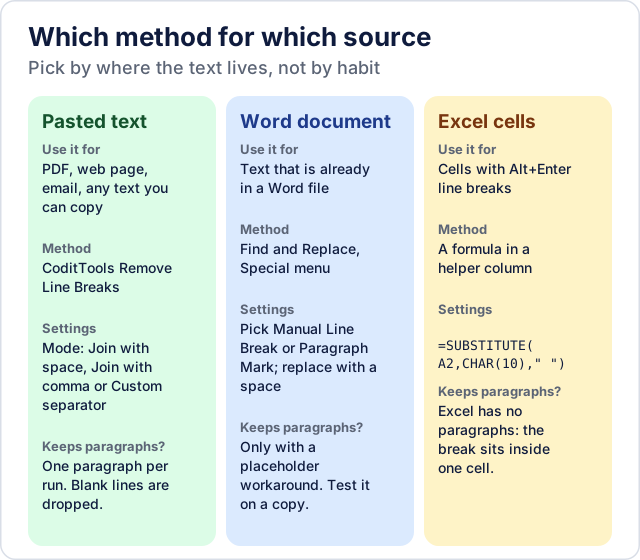
For text with more than one paragraph, join it one paragraph at a time, or use the marker workaround below (our suggestion, not a tool feature). Word and Excel have their own methods, and the diagram shows which route fits which source.
Why copied text arrives with a break on every line
A line break is stored in the text itself, so it survives copy and paste even when it only marked where a line happened to wrap. A PDF page lays text out as positioned lines, so copying a paragraph usually gives one break per printed line. Plain-text email is wrapped too: the Internet message standard says each line must be no more than 998 characters and should be no more than 78 (RFC 5322, section 2.1.1). Word and Excel add breaks of their own, and those come along when you copy.
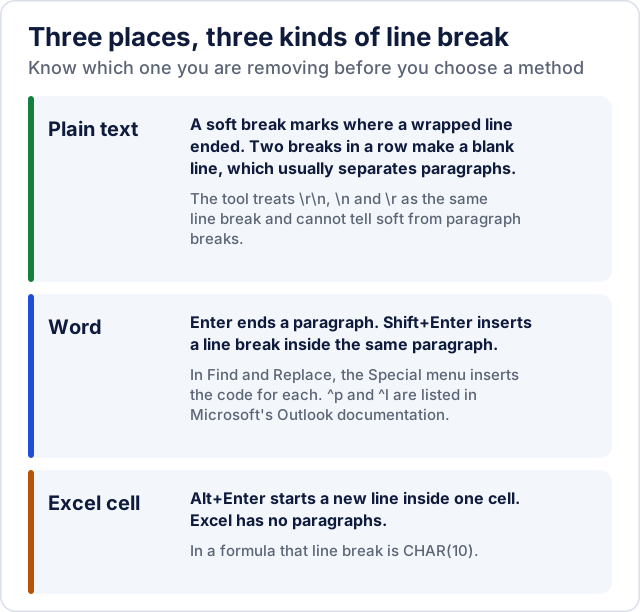
The kind of break decides what you should remove. A soft break only marks where a line ended: the sentence carries on after it. A paragraph break ends a paragraph. In plain text a soft break is a single line break and a paragraph break is usually a blank line, two line breaks in a row. You usually want to remove the soft breaks and keep the paragraph breaks. In Word, Enter ends a paragraph and Shift+Enter inserts a line break inside the same paragraph (Microsoft's Word shortcut list). In an Excel cell, Alt+Enter starts a new line inside that cell.
Remove line breaks with the tool
- Paste or type the text into the Input text box.
- Choose a Mode (the six modes are in the table below).
- Press Apply Selected. The result appears in the read-only Output text box.
- Press Copy (it copies the input if you have not applied a mode yet) or Download for a
.txtfile. Undo restores the previous input and output, and Reset clears everything.
The text is processed in your browser; nothing is uploaded. Windows (\r\n), Unix (\n) and old Mac (\r) line endings all count as one line break. Each run applies one mode, so to combine modes, copy the result and paste it back into the input.
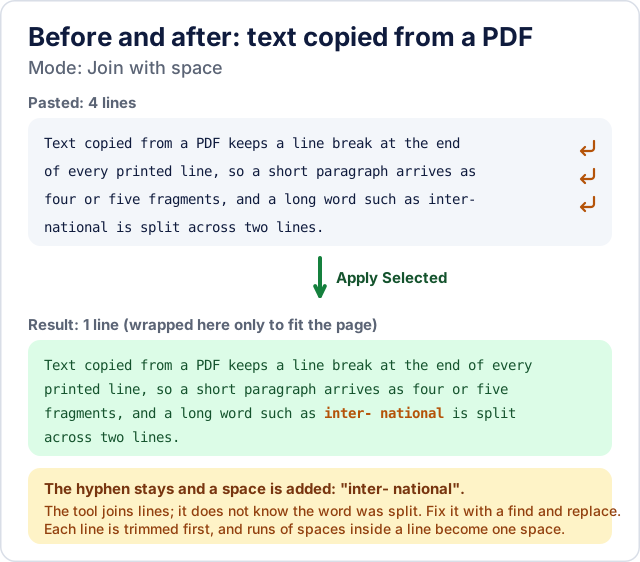
A typical case is text copied from a PDF, where each printed line ended in a break and one word was split across two lines. After Join with space it is a single line:
The six modes
| Mode | What it does | Example |
|---|---|---|
| Join with space | Trims each line, drops blank lines, joins with one space and squeezes runs of spaces inside a line | alpha / beta gamma becomes alpha beta gamma |
| Join with comma | The same, joined with a comma and a space; a line that already ends in a comma does not get a second one | red / green / blue becomes red, green, blue |
| Custom separator | Joins with the text you type (an empty box falls back to a space) | | gives red | green | blue |
| Collapse blank lines | Turns two or more line breaks in a row into one blank line and trims the ends; single line breaks are left alone | four blank lines become one |
| Trim each line | Removes spaces at the start and end of every line and keeps all line breaks | indented becomes indented |
| Insert breaks after | The opposite job: adds a break after every N characters or N words | 10 characters turns Hello world, this is a line. into Hello worl / d, this is / a line. |
Prefer words to characters in Insert breaks after: the character option cuts words in half, as the example shows. The word option keeps words whole but flattens the text first, so every run of spaces and line breaks, paragraph breaks included, becomes a single space before the new breaks are added.
Keeping paragraphs
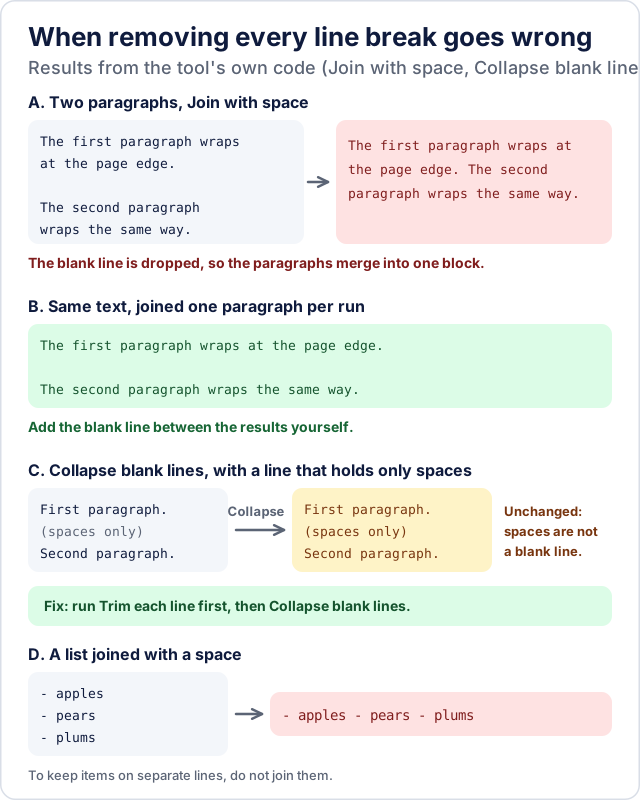
The join modes read the whole input as one block, and a line that holds only spaces or tabs counts as blank, because every line is trimmed first. Two wrapped paragraphs go in and one comes out:
The first paragraph wraps
at the page edge.

The second paragraph
wraps the same way.
becomes
The first paragraph wraps at the page edge. The second paragraph wraps the same way.Nothing in the tool detects paragraphs. The safest method is to join one paragraph at a time: copy the first paragraph into Input text, run Join with space, copy the result into your document, press Enter twice to leave a blank line, and repeat for each paragraph. Each run holds only one paragraph, so nothing can merge (panel B below). Afterwards, compare the paragraph count with the original.
A faster workaround for long texts (a suggestion, not a feature)
With many paragraphs you can mark the boundaries before joining. Neither the tool nor Microsoft documents this, so try it on a copy.
- Choose a marker that is not in your text, such as
[[P]], and type it on a line of its own in place of each blank line between paragraphs. - Run Join with space. The marker comes out between two spaces:
The first paragraph wraps at the page edge. [[P]] The second paragraph wraps the same way. - In a word processor or code editor, replace
[[P]](with the spaces) with two line breaks. The CoditTools Find and Replace tool cannot do this, because its Replace with box holds a single line. - Check that the number of replacements equals the number of markers you typed, and compare the paragraph count with the original.
A boundary you forget to mark stays merged, and a marker typed with extra spaces will not match. If the only problem is too many blank lines, use Collapse blank lines, which does not join anything.
Hyphens, lists and stray spaces
- A word split with a hyphen. Joining keeps the hyphen and adds a space, and the tool cannot know why the hyphen was there. A word broken only to fit the line becomes
inter- national, so remove the hyphen and the space. A hyphen that belongs to the word giveswell- known, so remove only the space. Fix each one in the Find and Replace tool (Findinter- national, Replace withinternational) rather than replacing every-, which would also change real dashes and bullets. - A list or bullet points. To keep items on separate lines, do not use a join mode: use Trim each line and Collapse blank lines. A joined list keeps its bullets: Join with space gives
- apples - pears - plums(panel D). - A line that only holds spaces. The join modes drop it, but Collapse blank lines only looks for line breaks in a row, so a line of spaces between two paragraphs counts as text and stays (panel C). Run Trim each line first, copy the result back into the input, then run Collapse blank lines.
Remove line breaks in Word
Word separates the two kinds of break, so you choose which one to remove. Microsoft's guide to finding and replacing text in Word describes the route for special characters: open the Navigation Pane (View > Navigation Pane), select the magnifying glass, open the settings gear, choose Advanced Find & Replace and pick the character from the Special menu, after which Word fills in its code. Ctrl+H opens the basic pane, and the web version supports only basic find and replace. Menus differ between Word for Windows, Word for Mac and Word on the web.
- To remove manual line breaks (Shift+Enter), choose the manual line break for Find what and type a single space in Replace with.
- To join paragraphs, choose the paragraph mark in the same way. Replace All merges every paragraph, like the tool's join modes.
Microsoft's Word page does not list the codes. Its documentation for Find and Replace in Outlook messages, a different product, lists ^p (or ^13) for a paragraph mark and ^l (or ^11) for a manual line break, and says ^p does not work in Find what when Use wildcards is on (Microsoft). Many guides use the same codes in Word, but treat the code Word shows after you choose a Special item as the authority for your version, and leave wildcards off.
To keep paragraphs (a suggestion, not a Word feature). Replace each paragraph break you want to keep with a marker that appears nowhere in the document, such as [[P]] (if blank lines separate paragraphs, find two paragraph marks in a row). Replace the remaining paragraph marks and manual line breaks with a single space, then replace the marker with two paragraph marks. Microsoft does not document this, so work on a copy and compare the paragraph count afterwards. It cannot work when a single paragraph mark separates paragraphs with no blank line, because nothing then tells a paragraph end from a wrapped line. Headings, list items and table cells also end with paragraph marks, so joining merges those too.
Remove line breaks in Excel
Excel has no paragraphs. A line break is a character inside one cell, entered with Alt+Enter (Microsoft's instructions, which cover Excel for Microsoft 365, 2024, 2021, 2019 and 2016), and removing it never changes rows or cells. In formulas it is the character CHAR(10), which Microsoft's TEXT function page uses where it adds a line break. To replace it with a space, put this in a helper column next to the data:
=SUBSTITUTE(A2,CHAR(10)," ")SUBSTITUTE replaces the text you name with the text you give it (Microsoft). Copy the column and paste it back as values, so you can delete the original. CLEAN also removes the line break (it removes the first 32 non-printing ASCII characters, and Microsoft's example strips CHAR(10); Microsoft), but it replaces nothing, so the last word of one line runs into the first word of the next. Use SUBSTITUTE when you want a space. If a break survives, text from another system may contain a carriage return, CHAR(13); this version removes it first:
=SUBSTITUTE(SUBSTITUTE(A2,CHAR(13),""),CHAR(10)," ")Find and Replace, without a formula. Select the cells and press Ctrl+H. Click in Find what and press Ctrl+J: nothing visible is typed, but the insertion point moves down a line, which is the line break. Type a space in Replace with (leave it empty to join words without a gap) and choose Replace All. Microsoft's Find and Replace page for Excel does not mention Ctrl+J. The method comes from an answer by a Microsoft MVP, a volunteer rather than Microsoft staff, on Microsoft Q&A, so treat it as community-documented; we have not tested it in every Excel version. It overwrites the original cells, so use a copy of the sheet, and try any method on a copy first.
Try the tools mentioned in this post - all free, no account needed.
Runs in your browser. No watermarks. No file uploads to a server.
Browse text tools →