How to Split a PDF: Extract Pages, Separate Ranges, and Split Documents for Free in Your Browser
Learn how to split a PDF into separate pages, extract custom ranges, divide documents into equal parts, or separate odd and even pages for free in your browser with zero file uploads.

Almost everyone who regularly works with digital documents has encountered the frustration of an unwieldy, multi-page PDF. You might receive a 120-page mortgage packet when you only need to return the signed disclosure on page 14. You might have a 50-page financial statement from your bank when your accountant only requests the quarterly summary on pages 3 through 6. Or perhaps you are an educator or student trying to share a single chapter from a scanned textbook without overwhelming your classmates with a 200-megabyte download.
When you need to separate pages from a pdf, traditional desktop software often stands in the way. Heavy commercial PDF suites like Adobe Acrobat Pro require expensive recurring monthly subscriptions just to access basic page extraction tools. Meanwhile, many casual free online PDF tools require you to upload your sensitive personal files to remote third-party cloud servers, risking your confidential data, imposing arbitrary queue limits, or stamping unsightly watermarks across your paperwork.
Fortunately, modern web standards have made cloud uploads obsolete for document manipulation. With client-side JavaScript and WebAssembly libraries like pdf-lib, you can parse, separate, and extract PDF pages directly in your web browser. In this comprehensive guide, you will discover how to separate pdf file pages with zero file uploads using the free CoditTools PDF Splitter. You will learn the difference between continuous document splitting and selective page extraction, master custom page range syntax, understand client-side privacy architecture, and explore practical troubleshooting tips for everyday document workflows.

Document Splitting vs. Page Extraction: What Is the Difference?
Before dividing a multi-page document, it is helpful to clarify two related terms that are often used interchangeably: document splitting and page extraction. While both operations separate pages from an original source document, they serve distinct organizational objectives.
1. Document Splitting (Continuous Partitioning)
Document splitting refers to dividing an entire PDF into sequential chunks or logical segments where every single page from the original document is preserved across the resulting files. Common scenarios include:
- Overcoming Email Attachment Limits: Most standard email providers (such as Gmail, Outlook, and Yahoo) cap incoming and outgoing attachment sizes at 20 MB to 25 MB. If you have an 80 MB scanned architectural manual, splitting it into four equal 20 MB files allows you to send the complete document across multiple emails without losing a single page.
- Dividing by Chapters or Sections: Breaking a large manuscript, legal deposition, or course syllabus into standalone chapters makes large documents far easier to navigate, annotate, and index.
- Separating Odd and Even Pages: When using older non-duplex desktop scanners, scanning double-sided stacks often produces one PDF containing all front (odd) pages and another containing all back (even) pages. Splitting and recombining these sets restores the natural reading order.
2. Selective Page Extraction (Targeted Isolation)
In contrast, selective page extraction is the deliberate isolation of specific target pages while discarding the rest of the document. Typical examples include:
- Extracting Tax & Income Forms: Pulling out Form W-2 or a 1099 statement from an extensive 60-page annual tax return packet.
- Isolating Signature & Execution Pages: Extracting only the signing and notary endorsement pages from a commercial lease or Non-Disclosure Agreement (NDA) to submit to an escrow agent.
- Pruning Sensitive Information: Extracting public-facing executive summaries or project deliverables while stripping out internal financial audits, trade secrets, or client rosters before distributing paperwork externally.
The CoditTools PDF Splitter seamlessly accommodates both workflows. By offering four dedicated split modes—Page Range, Equal Parts, Odd & Even Pages, and All Pages Separately—you can choose whether to divide your entire document symmetrically or surgically extract individual pages in seconds.
How PDF Documents Are Structured: Why Splitting Preserves 100% Quality
A common concern when separating PDF pages online is whether the process degrades document quality. Users often ask: “Will splitting my PDF blur my high-resolution vector logos, downsample my embedded photos, or break my searchable text?”
The short answer is no. To understand why, it helps to understand the underlying architecture of the Portable Document Format (PDF).
The Object-Oriented Anatomy of a PDF
Unlike raster image formats (such as JPEG or PNG) where visual information is saved as a fixed grid of color pixels, a PDF is an object-oriented document tree. Internally, a PDF consists of several core data components:
- The Header: Identifies the PDF version specification (e.g., PDF 1.4 through PDF 2.0).
- The Body: A collection of distinct data objects, including Page Objects (defining dimensions and orientation), Content Streams (containing mathematical drawing operators for typography and vector shapes), Font Descriptors (embedded TrueType or OpenType typefaces), and XObjects (embedded raster images and vector graphics).
- The Cross-Reference Table (XRef Table): A byte-offset catalog that tells PDF readers the exact memory position of every object within the file.
- The Trailer: Points to the document's root catalog and metadata dictionary.
Direct Page Copying vs. Re-Encoding
When you use a high-quality browser tool built on modern document engines like pdf-lib, the application does not convert your PDF into images and re-compress them. Instead, it performs native object copying:
- The engine reads the source document's internal catalog and parses the exact page nodes you specified.
- It creates a brand-new, clean PDF document container in memory.
- It copies the target page dictionaries, font resources, and vector content streams directly into the new container using the library's
copyPages()method. - It compiles a fresh cross-reference table and writes the output bytes.
Because the underlying vector drawing commands and embedded font files are copied byte-for-byte without rasterization or lossy re-compression, your extracted PDF retains 100% of its original optical fidelity. Vector typography remains razor-sharp at any zoom level, embedded photography remains pristine, and all text remains fully selectable and searchable.
Security & Privacy: Why In-Browser Client-Side Processing Matters
PDF documents frequently contain some of the most sensitive, confidential data in modern life: bank statements, tax returns, social security numbers, medical histories, trade secrets, proprietary source code, and legally binding contracts. Entrusting these documents to random third-party internet converters creates massive security vulnerabilities.
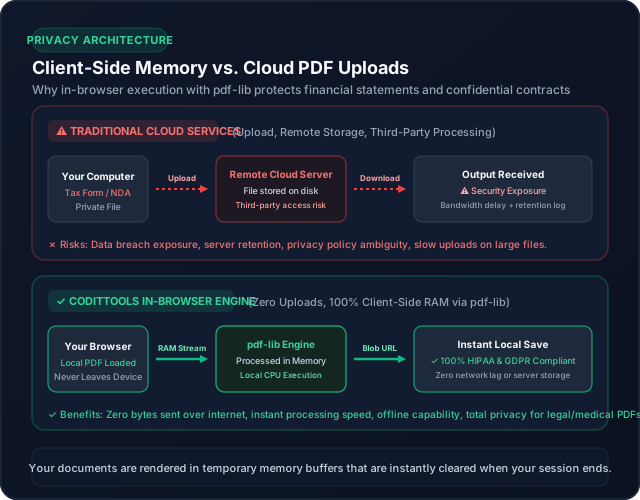
The Hidden Dangers of Traditional Cloud Converters
When you upload a document to a conventional “free PDF converter” website, an alarming sequence of events takes place behind the scenes:
- Network Transmission: Your confidential file travels over the public internet to an unverified third-party web server.
- Server Storage: The remote server writes your document to its physical hard drive or cloud object storage bucket (such as AWS S3) while queuing the file for conversion.
- Retention Policies & Data Logging: Many commercial web converters retain files on their servers for hours or days. Their server logs frequently record file names, user IP addresses, timestamps, and document metadata. If that cloud provider suffers a data breach or misconfigures its storage permissions, your private personal records could be leaked online.
- Regulatory & Compliance Violations: In corporate, medical, and financial environments, uploading client files to unvetted cloud servers often directly violates strict regulatory compliance standards, including GDPR, HIPAA, CCPA, and corporate Non-Disclosure Agreements.
The CoditTools Privacy Advantage: 100% Client-Side Processing
The CoditTools PDF Splitter operates on a fundamentally different, privacy-first architecture:
- Zero File Uploads: When you select or drag a PDF into the tool, the file is read directly from your local hard drive into your web browser's temporary memory via standard HTML5
FileandArrayBufferAPIs. Not a single byte of your document is ever transmitted to CoditTools servers or any remote cloud infrastructure. - Local CPU Execution: The page extraction logic executes on your device's local processor using client-side JavaScript. Processing completes almost instantaneously because there is no upload or download network bottleneck.
- Ephemeral Memory Buffers: As soon as you download your split files or close your browser tab, the temporary memory buffer is automatically cleared by your browser's garbage collector. Your data never touches a remote disk, ensuring complete compliance with organizational privacy standards.
- Works Offline: Because the engine runs client-side, you can load the tool page, disconnect your internet connection, and split confidential documents completely offline.
How to Split a PDF Using CoditTools (Step-by-Step Guide)
Splitting and separating PDF pages with CoditTools takes just four simple steps. Follow this visual walkthrough to extract your documents in seconds.
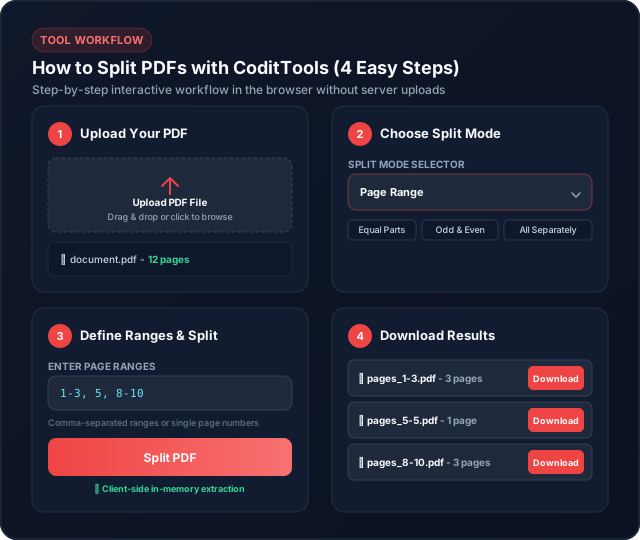
Step 1: Upload Your PDF Document
Navigate to the free CoditTools PDF Splitter. Drag and drop your target PDF file directly into the dotted upload box, or click the box to browse your device's filesystem. Once selected, the tool instantly reads the document in local memory and displays the verified file name alongside the total page count (for example: 📄 quarterly_report.pdf - 24 pages).
Step 2: Select Your Preferred Split Mode
CoditTools provides four specialized split modes in a convenient dropdown menu:
- Page Range (Default): Allows you to define custom page numbers and continuous intervals (e.g.,
1-3, 5, 8-10). Each comma-separated entry generates its own standalone PDF file. - Equal Parts: Divides the total document into $N$ equal chunks (e.g., splitting a 30-page document into 3 equal 10-page files). Any remainder pages are distributed proportionally across the earliest files.
- Odd & Even Pages: Automatically sorts all odd-numbered pages (1, 3, 5...) into
odd_pages.pdfand all even-numbered pages (2, 4, 6...) intoeven_pages.pdf. - All Pages Separately: Bursts every individual page of the document into its own single-page PDF (e.g.,
page_1.pdf,page_2.pdf, ...).
Step 3: Define Parameters and Click “Split PDF”
Depending on the mode you selected:
- If using Page Range, type your desired ranges into the text field (such as
1-4, 7, 10-12). - If using Equal Parts, enter the number of parts (from 2 up to the total page count).
Click the primary “Split PDF” button. The client-side engine parses your request, constructs the output documents, and displays your generated files in less than a second.
Step 4: Download Your Output Files
Each extracted document appears in an organized download list showing the generated file name and verified page count badge (e.g., pages_1-4.pdf - 4 pages). Click the “Download” button next to each file to save it immediately to your device's downloads folder.
Mastering Page Range Syntax: Rules, Trimming, and Edge Cases
The Page Range mode is the most versatile feature of the PDF Splitter, allowing you to extract any combination of continuous ranges and standalone sheets in a single operation. Understanding the exact parsing rules ensures you get precisely the files you need without unexpected errors.
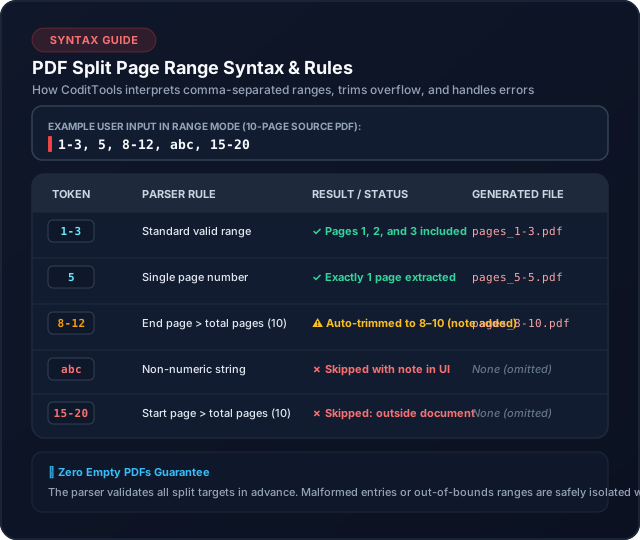
Core Range Syntax Rules
| Syntax Token | Parser Action | Example Input | Generated Output |
|---|---|---|---|
A-B |
Continuous range of pages from A to B (inclusive) | 1-4 | pages_1-4.pdf (4 pages) |
N |
Single isolated page extracted as a 1-page document | 7 | pages_7-7.pdf (1 page) |
, |
Delimiter separating distinct target output documents | 1-3, 5, 8-10 | 3 separate PDF downloads |
Overflow (8-25) |
Automatically trimmed to the document's last page with a note | 8-25 (on 10-page doc) | pages_8-10.pdf (trimmed) |
Invalid (abc) |
Non-numeric characters safely skipped with status note | abc | Omitted (no blank file) |
Smart Auto-Trimming and the “Zero Empty Files” Guarantee
Many poorly programmed PDF splitting tools either crash or generate corrupt 0-byte files when a user types an invalid or out-of-bounds page range. The CoditTools engine includes built-in protective safeguards:
- Automatic Range Trimming: If you specify a range that extends past the end of your document (for example, entering
15-30on a 20-page document), the parser automatically adjusts the boundary to15-20and renders an informative status note: “‘15-30’ was trimmed to 15-20 to fit this PDF's 20 pages.” - Safe Skipping of Malformed Entries: If an entry contains typo characters (such as
doc-final) or an inverted sequence where the first page is higher than the last (e.g.,12-4), the entry is skipped, and a clear explanatory alert informs you why no file was generated for that token. - No 0-Page Files: The engine pre-plans every output before touching the document buffer. If a requested range produces zero valid pages, no empty file is ever saved or offered for download.
Common Mistakes When Splitting PDFs and How to Avoid Them
To ensure smooth document handling, watch out for these frequent mistakes when separating PDF pages:
1. Attempting to Split Password-Protected PDFs
The Mistake: Uploading a secure PDF (such as a password-protected bank statement or legal escrow document) without unlocking it first.
The Fix: Modern browser PDF decoders cannot parse encrypted content without the decryption key. If you upload an encrypted file, CoditTools displays a clear safety message: “The file could not be read as a PDF. It may be damaged, password-protected or not a PDF.” Open the document in your PDF reader or browser, enter your password, print or save an unlocked copy to your desktop, and then upload the unlocked file for splitting.
2. Overlapping Page Ranges Causing Redundant Files
The Mistake: Entering overlapping ranges such as 1-5, 4-8 when you intended to split a document into consecutive halves.
The Fix: Double-check your starting and ending page numbers. Entering 1-5, 4-8 will extract pages 4 and 5 twice across two different files. If you want seamless non-overlapping parts, specify 1-4, 5-8.
3. Forgetting That Page Numbers Are 1-Based
The Mistake: Programmers and technical users accustomed to 0-based indexing often enter 0-5 to capture the first five pages.
The Fix: PDF page numbering in consumer documents is strictly 1-based. Entering 0 causes the parser to skip the invalid token. Always start numbering from 1 (e.g., 1-5).
4. Using Document Folio Numbers Instead of Physical Page Numbers
The Mistake: Many published books, academic theses, and financial prospectuses have Roman numerals (i, ii, iii, iv) for introductory pages before starting “Page 1” on the actual body text. If you enter 1 into a PDF splitter, you will extract the very first physical sheet of the file (often the cover or title page), not page 1 of the body text.
The Fix: Look at your PDF reader's navigation bar to see the true physical page index (e.g., “Page 5 of 32”) rather than relying on the printed number at the bottom of the page.
5. Double-Sided Scanning Interleaving Problems
The Mistake: Splitting odd and even pages from manual scanner feeds and losing track of file order.
The Fix: When scanning double-sided stacks with a single-sided sheet feeder, use the Odd & Even Pages mode to isolate pages, and then recombine them in sequential order using our free CoditTools Merge PDF Tool.
Advanced Multi-Tool Workflows: Pairing PDF Splitter with Other Utilities
Splitting is often just one step in a broader document management workflow. Here is how you can combine the PDF Splitter with other free utilities in the CoditTools suite:
Workflow A: Extract and Reorder Pages with PDF Merge
If you need to assemble a custom presentation from multiple source reports, use the PDF Splitter to extract the specific chapters or diagrams you need from each source document. Then, navigate to the CoditTools Merge PDF Tool to combine those individual outputs into one cohesive file. Read our step-by-step guide on how to merge PDFs online for free to learn best practices for arranging and compiling multi-document portfolios.
Workflow B: Split First, Then Compress for Email
If you have an oversized scanned document that exceeds corporate file size limits, splitting it into separate chapters often solves the problem immediately. For remaining files that are still too large due to high-DPI scans, use our companion CoditTools Compress PDF Tool. Read our detailed analysis on how to compress PDF files online to balance DPI resolution, text clarity, and file weight.
Workflow C: Convert Extracted Images
If your extracted PDF pages contain photographs, logos, or infographics that you need to embed into web articles, social media graphics, or PowerPoint slides, you can convert those visual assets using our Online Image Converter. Check out our technical guide to converting PNG, JPG, WebP, and SVG files to choose the optimal image format for your digital assets.
Frequently Asked Questions
Is it safe to split confidential financial or legal PDFs with CoditTools?
Yes, completely. Unlike traditional cloud converter websites that upload your files to remote third-party servers, CoditTools processes all documents 100% client-side inside your browser using JavaScript and pdf-lib. Your document never leaves your computer, no copies are saved to any cloud database, and your private data remains protected under full GDPR and HIPAA standards.
Can I extract a single page from a 100-page PDF?
Yes. Simply select the Page Range mode and type the exact page number you want (for example, typing 14). CoditTools will extract only page 14 and generate a standalone single-page file named pages_14-14.pdf.
Will splitting my PDF reduce text sharpness or image quality?
No. Splitting does not re-compress or rasterize your document. The underlying vector graphics, embedded typography, and image data streams are copied directly into new PDF containers at their original byte-level fidelity. Vector fonts remain infinitely scalable and fully searchable.
Can I split a PDF that is password-protected?
No. Password-protected PDFs have encrypted internal data trees that prevent unauthorized readers and scripts from accessing page content. To split an encrypted document, open it in your desktop PDF software, enter the authorized password, save an unencrypted copy, and then upload the unencrypted file to CoditTools.
How do I split an entire document into individual 1-page files?
Select the All Pages Separately mode in the dropdown menu and click “Split PDF”. If your document contains 20 pages, CoditTools will generate 20 individual downloadable files (page_1.pdf through page_20.pdf), each containing exactly one sheet.
What does “Equal Parts” mode do if the page count doesn't divide evenly?
If a document does not divide evenly (for example, dividing a 10-page PDF into 3 equal parts), the remainder pages are automatically distributed to the earliest parts. In this example, the tool generates Part 1 (4 pages: 1–4), Part 2 (3 pages: 5–7), and Part 3 (3 pages: 8–10). No part is ever empty, and file sizes never differ by more than a single page.
Is there a file size limit when splitting PDFs in CoditTools?
Because processing takes place in your local browser memory rather than on a remote server, there are no artificial server upload quotas or bandwidth throttles. The practical limit depends entirely on your device's available RAM. Modern desktop browsers easily handle standard documents of 50 MB to 200 MB with hundreds of pages.
Conclusion
Separating pages from a multi-page PDF does not require paying for bloated commercial desktop licenses or risking your sensitive personal records on obscure cloud upload sites. With modern in-browser document processing, you can extract custom page ranges, divide files into equal chapters, or burst entire documents into single pages in seconds.
The CoditTools PDF Splitter gives you a fast, reliable, and completely private environment for all your document separation needs. Every operation executes entirely on your device, ensuring maximum speed and total data privacy. Whenever you need to organize your digital paperwork, bookmark CoditTools and take advantage of our integrated tool suite—including our PDF Merger, PDF Compressor, and complete PDF Tools collection.
Try the tools mentioned in this post - all free, no account needed.
Runs in your browser. No watermarks. No file uploads to a server.
Browse PDF tools →