How to Copy Instagram Hashtags from Posts and Reels (5 Easy Methods)
Learn how to copy and extract Instagram hashtags from posts and Reels. Compare 1-click link extraction, desktop browser methods, mobile workarounds, and OCR tips.
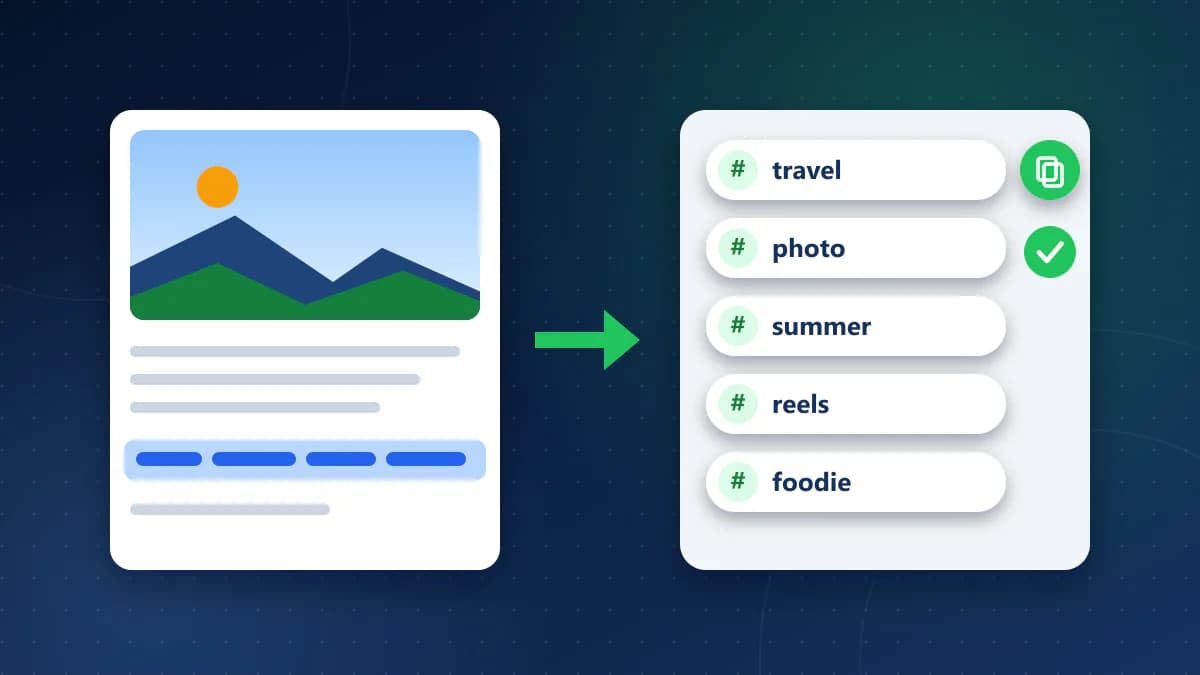
Whether you are conducting competitor research, saving high-performing tags from a viral Reel, or curating themed hashtag groups for your content calendar, copying hashtags from Instagram should take seconds. Yet tapping and holding a caption in the mobile app does nothing: Instagram does not provide text-selection handles on post descriptions or Reels.
The problem is even more pronounced on Instagram Reels. Because Reels play looping video, tapping anywhere near the caption typically pauses playback, restarts the video, or opens the audio page instead of selecting text. Even when you manage to copy a caption through a browser or screenshot, you usually end up with a bulky block of narrative copy, emojis, and separator dots that you must edit line-by-line just to isolate the hashtags.
You do not need to retype hashtags manually on a smartphone keyboard. Depending on your device and whether you need tags from a photo post, a carousel, or a fast-paced Reel, several reliable methods exist to copy clean hashtags in seconds.
This guide explains five practical ways to copy Instagram hashtags, how to extract hashtags directly from a post link in one click, how to copy tags hidden in the first comment, how to avoid optical character recognition (OCR) errors, and how to organize your copied tags for reuse.
Quick Summary: Which Hashtag Copying Method Is Best?
The best approach depends on your device and whether you want to separate hashtags from the narrative text:
- To Copy Hashtags from Reels by Link (Fastest Overall): Tap Share → Copy link in the app, paste the URL into the free Instagram Caption Copier on CoditTools, and click Copy Hashtags to get a clean, deduplicated, space-separated list without touching the caption story.
- On a Desktop PC or Mac: Open the post URL on Instagram.com in your desktop browser, click ...more, highlight the hashtag block with your mouse cursor, and press Ctrl + C (Windows) or Command + C (Mac).
- On a Mobile Phone Without Extra Tools: Copy the post link, open a private browsing tab in Safari or Chrome, load the post, and highlight the tags using mobile selection handles.
- On an iPhone Offline: Take a screenshot of the expanded caption, open it in Photos, and extract the text with Apple Live Text OCR (checking for misread
#symbols). - On Android Offline: Take a screenshot, open it in Google Photos, tap Google Lens, switch to the Text tab, and copy the highlighted tag cluster.
For a detailed breakdown of copying full descriptions, line breaks, and emojis across different devices, refer to our companion guide on how to copy Instagram captions.
Why Copying Hashtags on Instagram Is So Frustrating
Instagram's interface design makes copying text unintuitive compared to standard web pages for three reasons:
- Touch Gesture Prioritization: In the mobile app, touch gestures are reserved for feed navigation: tapping pauses or plays media, double-tapping likes a post, swiping advances reels, and tapping handles opens profiles. Text-selection handles are disabled to prevent conflicts with everyday scrolling.
- The Reels Video Overlay: On Reels, the caption floats directly over looping video in a semi-transparent overlay. Tapping ...more on a fast-paced Reel often triggers video pauses or navigates to the audio page instead of revealing text.
- The Mixed Content Problem: Captions combine storytelling hooks, narrative paragraphs, calls-to-action, line-break periods, and hashtags. Manually deleting dozens of narrative words on a mobile keyboard just to keep ten hashtags is slow and frustrating.
Method 1: Extract Hashtags by Link (1-Click Online Copier)
Using a link-based extractor is the fastest and cleanest method to copy hashtags, particularly from Instagram Reels and lengthy carousel posts. Instead of fighting with screen gestures or manually trimming the author's story, an online tool reads the public post URL and isolates the hashtag block automatically.
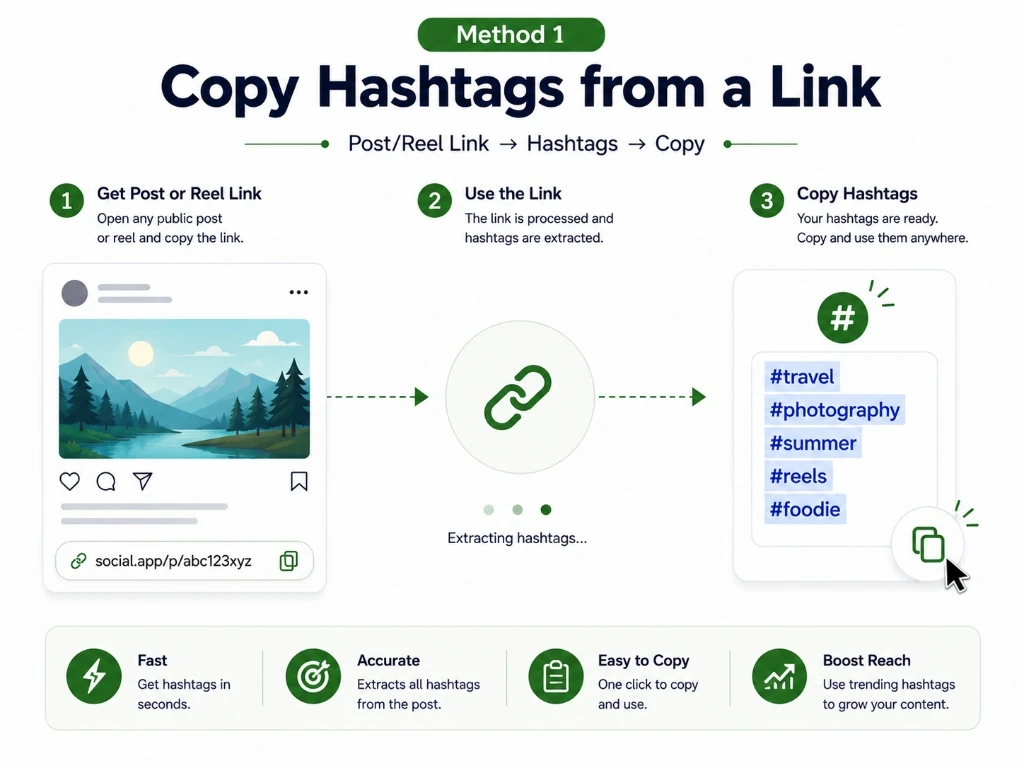
The Instagram Caption Copier on CoditTools is a free browser-based utility designed specifically for this workflow. It parses caption text using Unicode pattern matching, separates narrative copy from hashtags, and presents the tags in a dedicated output field.
Step-by-Step: How to Copy Hashtags by Link
- Copy the Link: In the Instagram app, tap the Share icon (paper airplane) on the post or Reel and tap Copy link.
- Open the Tool: In any mobile or desktop browser, go to the Instagram Caption Copier.
- Paste the URL: Paste the link into the URL input box (e.g.,
https://www.instagram.com/reel/C-xyz123/). Tap the clipboard button to paste instantly. - Fetch Content: Click Fetch Caption. The tool processes the public link in seconds.
- Copy the Hashtags: Click Copy Hashtags below the dedicated hashtag box. The tool copies a clean, deduplicated, space-separated list directly to your clipboard.
Why Link Extraction Excels for Reels: It bypasses video playback controls, eliminates accidental profile clicks, ignores low contrast that trips up OCR, and automatically deduplicates repeated tags.
Method 2: Copy Hashtags on Desktop Web Browser
If you work on a computer, you can copy hashtags directly using your mouse cursor without third-party tools. On the web version of Instagram, captions and hashtags render as standard HTML text elements rather than touch-locked mobile components.
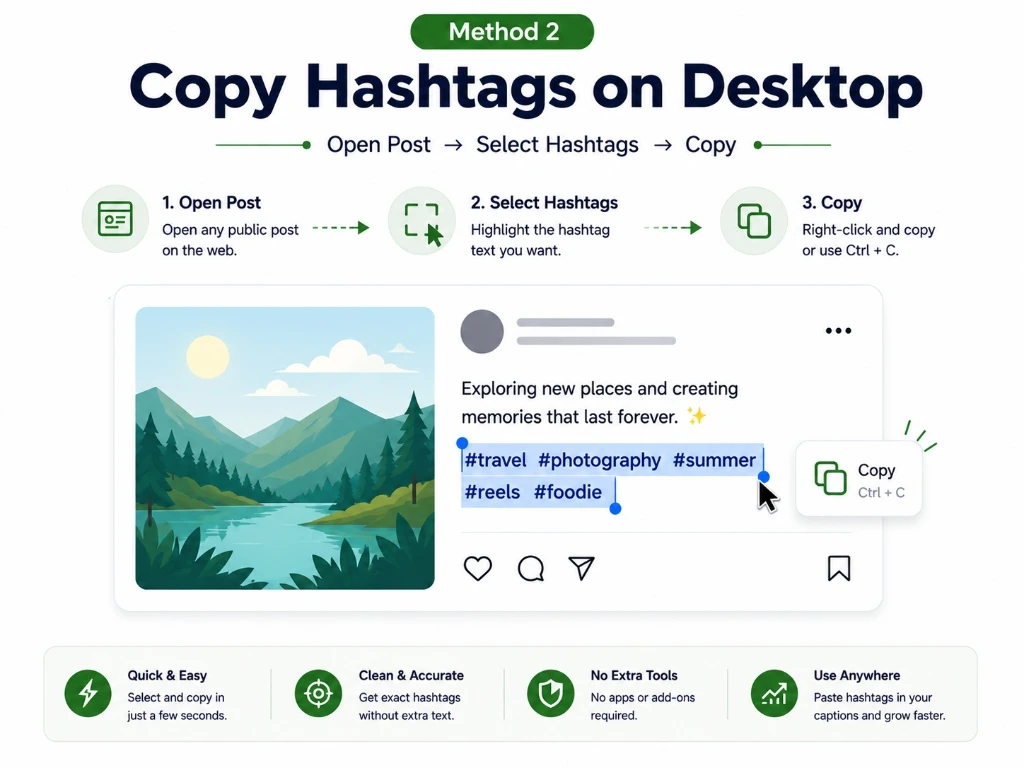
- Open on Desktop: Open the post or Reel URL on Instagram.com in Chrome, Safari, Edge, or Firefox.
- Expand the Caption: In the right-hand panel beside the media, click the grey ...more button to reveal the full caption.
- Highlight the Hashtags: Click and drag your mouse cursor across only the hashtag section at the bottom of the caption.
- Copy to Clipboard: Press Ctrl + C (Windows) or Command + C (Mac), or right-click and choose Copy.
Practical Tip: If the author scattered hashtags throughout sentences (inline tags like "Exploring #nature on a #roadtrip"), cursor selection captures the surrounding words too. In that scenario, an online extractor saves editing time.
Method 3: Copy Hashtags on Mobile Web Browser (Safari & Chrome)
When away from your computer and without third-party apps, access the web version of Instagram through mobile Safari (iPhone) or mobile Chrome (Android). The goal is preventing your mobile operating system from redirecting to the native app.
- Tap Share → Copy link on the Instagram post or Reel.
- Open a Private or Incognito tab in mobile Safari or Chrome to prevent the phone from launching the installed app.
- Paste the link into the address bar, press Go, and dismiss any login prompt.
- Tap ...more to expand the description.
- Press and hold the first hashtag until selection pins appear, drag them over the hashtag block, and tap Copy.
Mobile Browser Limitations: Mobile touch selection pins can be finicky. On small screens, adjusting pins around tightly clustered hashtags can cause selection to highlight the entire paragraph or snap back to a single word.
Method 4: Extract Hashtags on iPhone Using Live Text OCR
On iPhones running iOS 15 or later, Apple's built-in Live Text feature allows you to extract selectable text from images using on-device optical character recognition without opening a web browser.
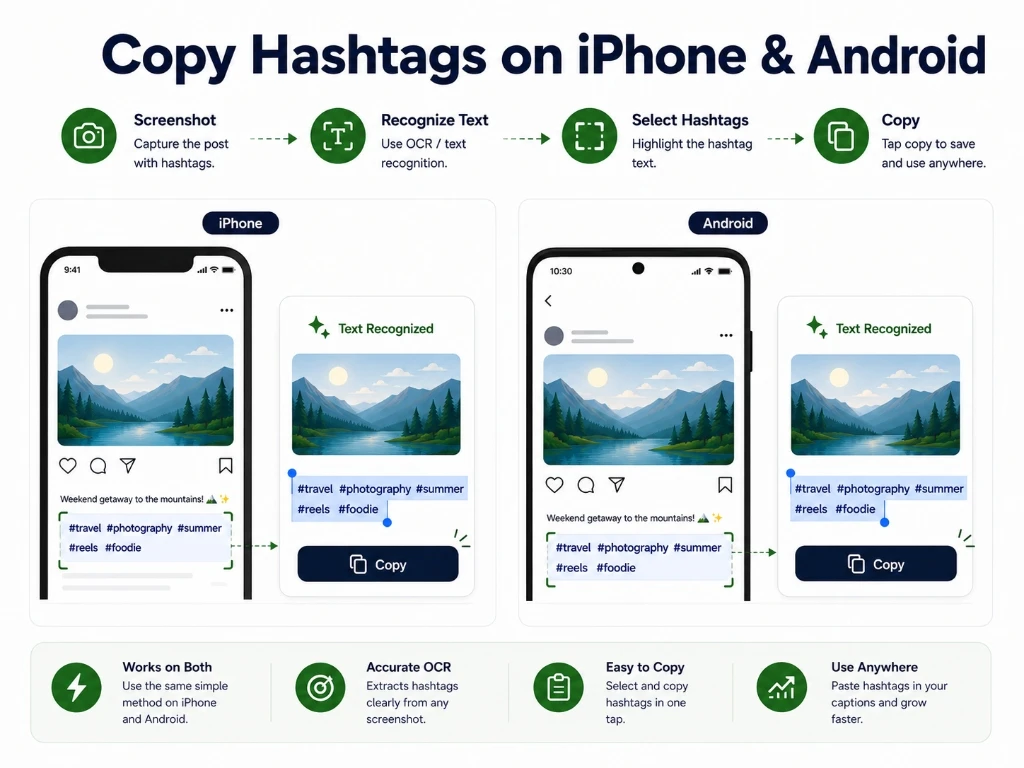
- In the Instagram app, tap ...more to unfold the hashtag block.
- Capture a screenshot by pressing Side Button + Volume Up (Face ID) or Side Button + Home Button (Touch ID).
- Open the screenshot in the Photos app.
- Tap the Live Text icon in the bottom-right corner, or press and hold directly on the text.
- Drag the selection pins over the hashtags and tap Copy.
The Critical Hashtag OCR Pitfall: Mangled "#" Symbols
While Live Text is accurate for standard prose, optical recognition engines frequently struggle with social media typography:
- Number Confusion: In small fonts or low-contrast screenshots,
#fitnessis frequently scanned as1fitnessorHfitness. - Dropped Characters: The
#symbol is sometimes omitted entirely, turning tags into unlinked words (e.g.,travel photography wanderlust). - Underscore Splitting: Multi-word hashtags with underscores (like
#digital_nomad) can be read as two separate words (#digital nomad), which breaks the hashtag link when republished.
Always review OCR-scanned lists in your notes app to verify that every tag begins with a valid # symbol and contains no accidental spaces.
Method 5: Extract Hashtags on Android Using Google Lens
Android smartphones provide optical character recognition through Google Lens, integrated into Google Photos, the Google Camera app, and system screen-selection tools on Samsung and Google Pixel devices.
- In the Instagram app, tap ...more to reveal the complete tag cluster.
- Take a screenshot by pressing Power + Volume Down.
- Open the screenshot in Google Photos and tap the Lens icon along the bottom toolbar.
- Tap the Text tab, drag your finger across only the hashtags you want, and tap Copy text.
System Screen Selection: On Google Pixel devices, open Recent Apps, tap Select on the Instagram card, highlight the tags, and tap Copy. On Samsung Galaxy phones, use Smart Select from the Edge Panel to crop the tags and extract text.
How to Copy Hashtags from the First Comment
Many creators write a concise caption and post their 10 to 30 hashtags in the first comment below the post to keep the caption clean. In the Instagram mobile app, comments cannot be directly highlighted.
- Desktop Browser: Open the post URL on Instagram.com. Find the author's comment in the right-hand panel, highlight the tags with your mouse, and press Ctrl + C or Command + C.
- Mobile Workaround: On a phone, take a screenshot of the open comments sheet and use Apple Live Text (iOS) or Google Lens (Android) to scan the comment block.
Method Comparison: Which Solution Fits Your Workflow?
The table below summarizes the five primary methods for copying Instagram hashtags, comparing device compatibility, extraction speed, formatting fidelity, and Reels support:
| Method | Best For | Supported Devices | Isolates Hashtags Automatically? | Preserves Hashtag Formatting? | Handles Reels Overlay? | Main Limitation |
|---|---|---|---|---|---|---|
| Online Extractor by Link | Fastest 1-click copying from Reels and posts | Any device with a browser (PC, Mac, iPhone, Android) | Yes (Dedicated hashtag panel) | Yes (Clean, deduplicated list) | Seamless (Processes URL directly) | Requires public post URL |
| Desktop Web Browser | Quick copying while working on a computer | Windows, Mac, Linux, ChromeOS | No (Manual cursor highlight needed) | Yes (Exact text encoding) | Good (Side panel display) | Requires desktop computer |
| Mobile Web Browser | Copying on phone without third-party apps | iOS Safari, Android Chrome | No (Manual touch pin selection) | Yes (Exact text encoding) | Moderate (Mobile web player) | Touch selection handles can be finicky |
| iPhone Live Text OCR | Offline copying on iPhone | iPhone (iOS 15 or later) | No (Manual OCR selection) | Inconsistent (May drop # or split tags) |
Difficult (Video background interference) | OCR can misread # as 1 or H |
| Android Google Lens OCR | Offline copying on Android phones | Android with Google Photos or Lens | No (Manual OCR selection) | Inconsistent (May omit symbols or spaces) | Difficult (Video background interference) | Requires saving screenshots to gallery |
How to Clean, Curate, and Organize Copied Hashtags
Copying hashtags is only the first step. If you plan to reuse them for competitor analysis or publishing, cleaning and curating the list ensures professional quality:
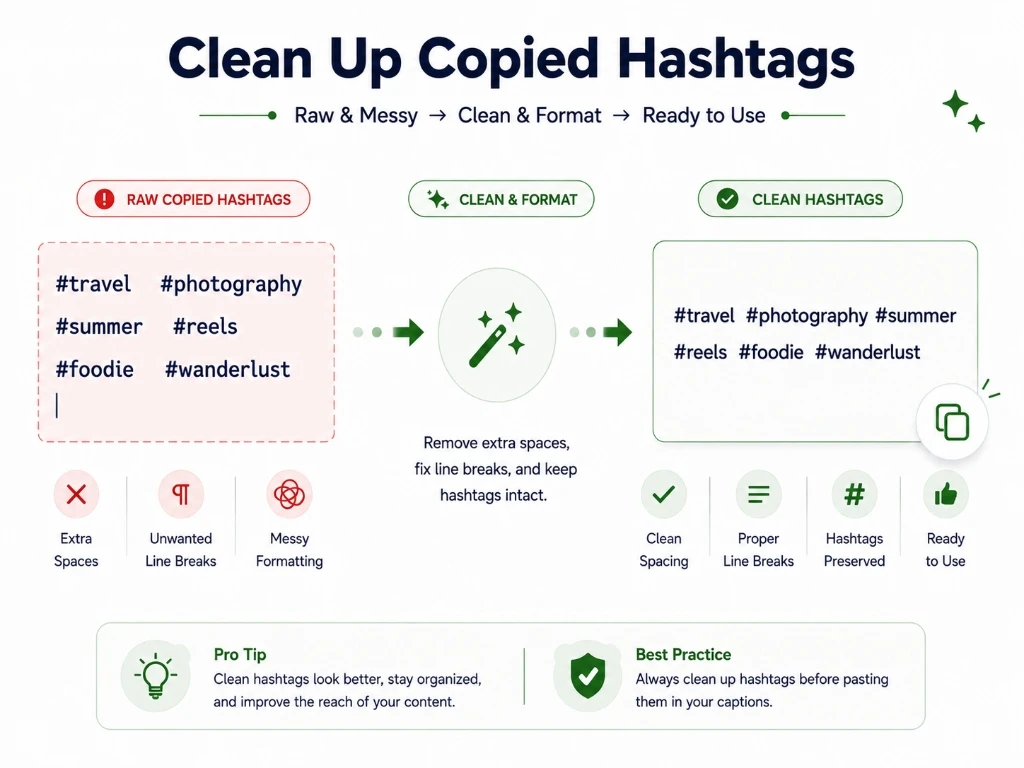
- Deduplicate Repeated Tags: Creators often accumulate duplicate tags across multiple posts. Duplicates waste your character limit and provide zero discoverability benefit. The Instagram Caption Copier automatically deduplicates tags using set filtering.
- Strip Formatting Dots: Many creators insert vertical stacks of periods or dashes to push hashtags down. When copying manually or via OCR, delete these punctuation marks before saving.
- Check for Restricted Tags: Instagram periodically restricts hashtags overrun with spam. Search for core tags in the Explore search bar; if recent posts are hidden, remove that tag immediately.
- Optimize Tag Count: While Instagram allows up to 30 hashtags, official creator recommendations suggest using 3 to 5 relevant hashtags, while many content managers find consistent results with 5 to 10 targeted tags. Avoid dumping 30 generic tags.
- Build a Reusable Hashtag Vault: Store your vetted hashtags in a notes app (Apple Notes, Google Keep, or Notion) organized by category: industry tags, community identifiers, and location markers.
Public vs. Private Content & Account Privacy
Understanding how Instagram's privacy architecture impacts extraction ensures you choose the right tool for the job:
- Public Posts and Reels: Any public post or Reel is accessible on the open web. Link-based extractors like the Instagram Caption Copier process public URLs without requiring an account login, cookies, or personal authorization.
- Private Accounts: Content published by private Instagram accounts requires follower authorization. Anonymous web extractors cannot access private URLs, and no reputable web tool can bypass private account barriers.
- Copying from Private Accounts You Follow: If you follow a private creator and need to copy hashtags for personal reference, online URL tools will not work. Expand the caption inside your authenticated app, take a screenshot, and use on-device OCR (Apple Live Text or Google Lens).
Ethical Considerations and Fair Use
Understanding the boundaries of hashtag reuse ensures professional integrity:
- Hashtags Cannot Be Copyrighted: Individual hashtags are search index keywords, not proprietary creative works. Researching and adopting hashtags used by successful creators in your niche is standard industry practice.
- Avoid Branded Campaign Tags: Do not copy tags tied to specific corporate campaigns, creator challenges, or trademarked slogans. Using another creator's personal brand hashtag on unrelated content confuses audiences.
- Narrative Copy vs. Hashtags: While copying hashtags is standard practice, copying an author's narrative storytelling, educational scripts, or original poetry without permission constitutes copyright infringement. For tips on ethically handling full descriptions, see our guide on how to copy Instagram captions.
Frequently Asked Questions
How do I copy hashtags from an Instagram post?
Copy the post link via the Share menu, open the Instagram Caption Copier on CoditTools, paste the URL, and click Copy Hashtags. Alternatively, open the post URL in a desktop browser to highlight the hashtag block with your mouse.
How do I copy hashtags from an Instagram Reel by link?
Tap the Share icon on the Reel, select Copy link, and paste the URL into the Instagram Caption Copier. The tool extracts the description and isolates the hashtags into a dedicated copy box, bypassing the video playback overlay entirely.
Why can't I select or copy hashtags in the Instagram app?
The Instagram mobile app reserves touch gestures for scrolling, liking, and navigating between videos and profiles. Text selection handles are disabled across post cards to prevent conflicts between text editing and everyday feed browsing.
How do I extract ONLY the hashtags without the rest of the caption?
Paste the post link into the Instagram Caption Copier. The tool automatically removes the author's narrative text, separator dots, and creator mentions, presenting only the clean, space-separated hashtags ready to copy in one click.
Can I copy Instagram hashtags on my phone without downloading an app?
Yes. You can paste the post link into the browser-based Instagram Caption Copier in Safari or Chrome, open the link in a private browser tab to select text manually, or take a screenshot and use built-in OCR tools like Apple Live Text (iOS) or Google Lens (Android).
Why does OCR turn my hashtag symbol (#) into a 1 or an H?
Optical character recognition algorithms match visual pixel patterns against standard alphabet and numerical character sets. In low-contrast screenshots or small font sizes, the vertical crossbars of the # symbol frequently register as a number 1 or letter H. Always inspect OCR-scanned tags before reusing them.
How do I copy hashtags placed in the first comment?
Open the post link in a desktop web browser where comments appear in a selectable right-hand sidebar. Highlight the creator's comment with your mouse and press Ctrl + C (Windows) or Command + C (Mac). On mobile, take a screenshot of the comments panel and use Live Text or Google Lens.
Can I copy hashtags from a private Instagram account?
Web-based link extractors cannot access private posts because they lack account credentials. If you are an approved follower, expand the caption inside the app, take a screenshot, and use Apple Live Text or Google Lens to extract the tags on your device.
Does copying hashtags from someone's post notify the creator?
Creators are not alerted when you copy hashtags, take screenshots of feed posts or Reels, or view public links in a browser. Instagram only sends screenshot notifications for disappearing photos or videos sent via Direct Message in Vanish Mode.
Is it legal to copy and reuse hashtags from other creators?
Yes. Hashtags are indexing keywords and search metadata, meaning they cannot be copyrighted. Copying hashtags for research or content strategy is standard practice. However, avoid copying personal branded tags or contest tags that do not apply to your content.
How many hashtags should I use on an Instagram post or Reel?
Although Instagram allows up to 30 hashtags, official creator recommendations suggest using 3 to 5 relevant hashtags, while many content strategists see consistent results with 5 to 10 targeted niche tags. Stuffing 30 broad or unrelated tags can make content look spammy.
Why do some copied hashtags not work when I paste them?
Hashtags fail when they contain accidental spaces (often caused by OCR converting underscores like #travel_blog into #travel blog), punctuation marks, special characters, or when a tag has been restricted or banned by Instagram due to spam.
Conclusion: The Most Efficient Hashtag Workflow
Copying Instagram hashtags does not have to be an exercise in frustration. While the native mobile app reserves touch gestures for navigation rather than text selection, you have multiple practical options depending on your device and setup.
For quick manual copying on a computer, opening the post on Instagram.com gives you immediate cursor selection. On mobile phones offline, Apple Live Text on iOS and Google Lens on Android provide workable screenshot OCR, provided you double-check for misread # symbols.
When dealing with Instagram Reels, long hashtag clusters, or when you want to avoid spending minutes manually deleting the author's story on a small keyboard, pasting the URL into the Instagram Caption Copier on CoditTools is the fastest, cleanest solution. In a single click, it isolates the tags, deduplicates repeats, and gives you a clean list ready for your content vault.
Try the tools mentioned in this post - all free, no account needed.
Runs in your browser. No watermarks. No file uploads to a server.
Browse all tools →