How to Copy Instagram Captions: 5 Easy Ways on iPhone, Android & Desktop
Learn how to copy Instagram captions on iPhone, Android, and PC. Compare browser methods, Live Text, Google Lens, and free tools to copy clean text and hashtags.
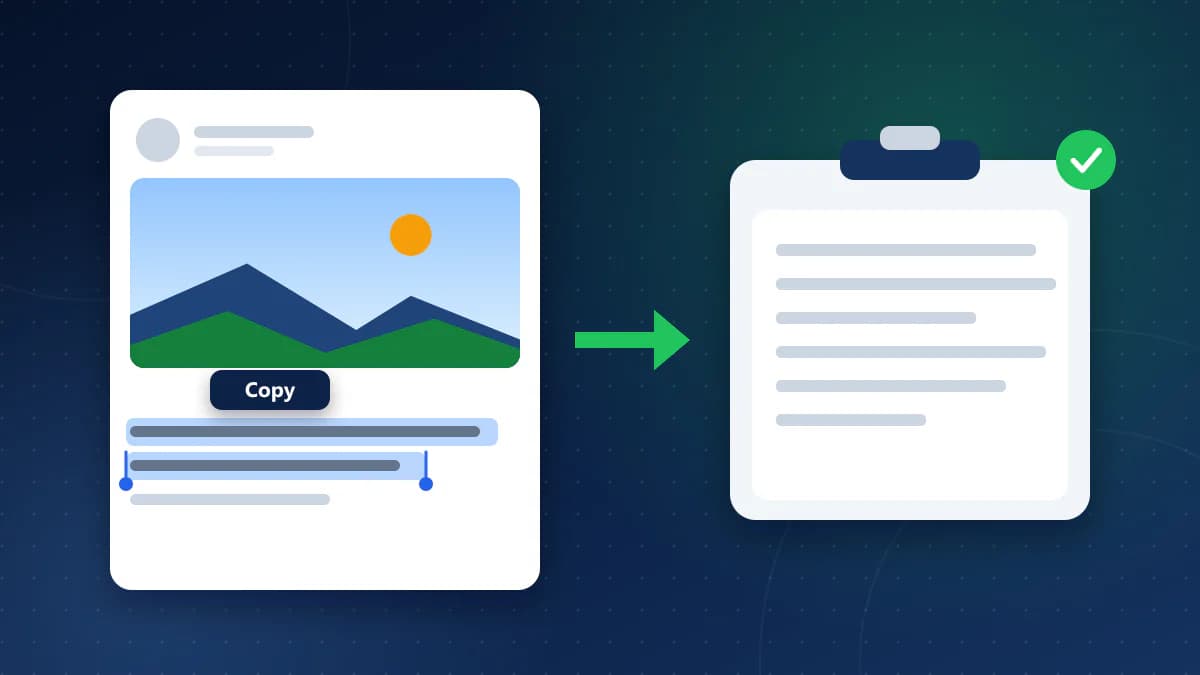
If you have ever tried to press and hold a caption in the Instagram mobile app to copy a quote, save a recipe, or grab hashtags, you already know what happens: nothing. Unlike web pages or notes apps, the Instagram app does not provide built-in text selection handles on captions. Tapping a caption typically opens a profile, pauses video playback, or expands comments.
While the mobile app interface does not offer direct text selection, the text itself remains accessible. Depending on whether you are using a desktop computer, an iPhone, an Android phone, or a web browser, there are several reliable ways to copy Instagram captions—including line breaks, emojis, and hashtags—without installing unverified mobile apps or logging into third-party services.
This guide explains five verified methods to copy Instagram captions, how to handle video descriptions on Instagram Reels, how to extract hashtags separately, and how to avoid common formatting and character-recognition issues.
Quick Summary: Which Method Should You Use?
The most practical method depends on your device and what you need to copy:
- On a PC or Mac: Open the post URL in any desktop browser (Instagram.com) to highlight and copy text directly.
- On an iPhone: Expand the caption, take a screenshot, and extract the text with Apple Live Text in the native Photos app.
- On Android: Expand the caption, take a screenshot, and copy the text with Google Lens or your phone's screen selection tool.
- For Long Captions & Reels: Use an online utility such as the Instagram Caption Copier on CoditTools to extract the full description in one click.
- To Copy Only Hashtags: Use an online caption tool to separate the narrative copy from the hashtag list automatically.
Why Text Selection Is Disabled in the Instagram App
The Instagram mobile app does not provide the text-selection controls available on standard web pages. Mobile touch interactions across post feeds are configured for gestures like scrolling, double-tapping to like, pinch-zooming photos, and opening comments.
Because touch events on captions trigger navigation rather than text editing, the app does not display copy handles. This restriction applies only to the native mobile app interface; the text itself can still be copied through desktop or mobile browsers, on-device optical character recognition (OCR), and web extractors.
Method 1: Desktop Web Browser (Direct Highlighting)

Using a desktop web browser—such as Chrome, Safari, Edge, or Firefox—is the simplest way to copy an Instagram caption. On a computer, Instagram renders post descriptions as standard HTML text elements rather than touch-locked app cards.
- Get the Post URL: Copy the link from your browser's address bar, or tap the Share icon (paper airplane) in the mobile app, select Copy link, and open it on your computer.
- Open the Post on Desktop: Paste the link into your browser. Post URLs follow
instagram.com/p/SHORTCODE/, while Reels useinstagram.com/reel/SHORTCODE/. - Expand the Caption: If the text exceeds two lines, click the grey ...more button to reveal the full description.
- Highlight and Copy: Click and drag your cursor over the caption, then press Ctrl + C (Windows) or Command + C (Mac).
Practical Considerations: Desktop browsers preserve paragraph breaks and standard Unicode emojis. However, clicking accidentally outside the text area can pause video posts or navigate away from the page.
Method 2: Mobile Web Browser (Bypassing App Redirects)

If you only have your phone, you can access the web version of Instagram through mobile Safari (iOS) or mobile Chrome (Android). The main challenge is preventing your phone from automatically opening the link inside the native app via universal links.
- In the Instagram app, tap Share on the post or Reel and select Copy link.
- Open your mobile browser (Safari on iPhone, Chrome on Android).
- Open a Private or Incognito Tab: Private browsing prevents the browser from automatically triggering the installed Instagram app.
- Paste the URL into the address bar and press Go. If prompted, close any login banner, or request the desktop site (via the aA menu in Safari or the three-dot menu in Chrome).
- Tap ...more on the post to expand the description.
- Press and hold any word in the caption until selection handles appear, drag across the text, and tap Copy.
Practical Considerations: Desktop view on a small mobile display can feel cramped, but it allows direct text selection without third-party tools.
Method 3: iPhone Live Text (Screen Capture OCR)

On iPhones running iOS 15 or later, Apple's built-in Live Text engine can extract selectable text from any image using on-device optical character recognition.
- Expand the Caption: In the Instagram app, tap ...more so the description unfolds on screen.
- Take a Screenshot: Press Side Button + Volume Up (Face ID models) or Side Button + Home Button (Touch ID models).
- Open Photos: Open the native Photos app and select the screenshot.
- Select Text: Tap the Live Text icon in the bottom-right corner (or press and hold directly on the text on iOS 16+). Drag the handles over the caption and tap Copy.
Understanding OCR Limitations: Live Text relies on visual recognition. In low-contrast screenshots, it can misread punctuation, alter hashtags (turning # into letters or numbers), and skip pictorial emojis. In addition, descriptions longer than one screen height require taking and stitching multiple screenshots.
Method 4: Android Google Lens and Screen Selection

Android smartphones offer built-in optical text extraction through Google Lens and manufacturer-specific screen tools.
Option A: Using Google Photos or Google Lens
- Tap ...more in the Instagram app to unfold the caption.
- Take a screenshot by pressing Power + Volume Down.
- Open the screenshot in Google Photos and tap the Lens icon.
- Select the Text tab, highlight the caption area, and tap Copy text.
Option B: Using System Screen Selection (Pixel & Samsung)
- Google Pixel: Swipe up and hold to open the Recent Apps overview, tap Select on the Instagram card, highlight the caption, and tap Copy.
- Samsung Galaxy: Use Smart Select from the One UI Edge Panel to crop the caption box and tap Extract text.
Practical Considerations: Like iOS Live Text, optical extraction on Android depends on screen clarity and can occasionally misread custom typography or omit line breaks.
Method 5: Online Instagram Caption Copier (Clean Text & Hashtags)
When you need to copy a long description without taking multiple screenshots, or when you want to extract hashtags separately, using an online utility is often the fastest workflow.
The Instagram Caption Copier on CoditTools is a free browser-based tool that extracts caption text directly from public Instagram URLs without accounts or logins.
How to Extract Captions with the Tool:
- In Instagram, tap Share on the post, Reel, or carousel and choose Copy link.
- Open the Instagram Caption Copier in your browser.
- Paste the post link into the input field (or tap the clipboard icon on mobile).
- Click Fetch Caption. The tool retrieves the caption data directly.
- Copy your results from the two dedicated output panels:
- Clean Caption: Shows the author's primary text with hashtags removed, preserving line breaks and emojis. Click Copy Caption.
- Hashtags: Shows all detected hashtags, deduplicated and formatted as a space-separated list. Click Copy Hashtags.
- To clear the fields for another link, click Reset.
Tool Scope and Limitations: The tool processes public posts, Reels, and carousels. It cannot access private accounts, video subtitles, on-screen video graphics, or audio tracks.
Method Comparison: Which Solution Fits Your Needs?
The table below compares the five methods across device support, formatting preservation, emoji handling, and hashtag extraction:
| Method | Best For | Supported Devices | Line Breaks | Emojis | Hashtag Extraction | Main Limitation |
|---|---|---|---|---|---|---|
| Desktop Browser | Quick copying on a computer | Windows, Mac, Linux, ChromeOS | Preserved | Preserved | Manual editing required | Requires a computer browser |
| Mobile Browser | Copying on phone without extra tools | iOS Safari, Android Chrome | Preserved | Preserved | Manual editing required | Operating system may redirect to app |
| iPhone Live Text | Short captions on iPhone offline | iPhone (iOS 15 or later) | Inconsistent | Often omitted | Manual editing required | Long captions require multiple screenshots |
| Android Google Lens | Short captions on Android phones | Android with Google Photos / Lens | Inconsistent | Often omitted | Manual editing required | OCR can misread stylized fonts or symbols |
| Online Caption Copier | Long captions, clean text, and hashtag research | Any device with a modern web browser | Preserved | Preserved | Automatic separation | Works with public posts only |
How to Copy Captions from Instagram Reels Specifically
Copying text from Instagram Reels involves an extra interface layer compared to photo posts. In the mobile app, Reels are full-screen vertical videos where descriptions float as semi-transparent cards in the lower-left corner.
When working with Reels, distinguish between four separate elements:
- Written Post Caption: The text added by the creator in the description field. This is the text you can copy with browsers, OCR, or caption tools.
- On-Screen Video Text: Text graphics edited directly into the video frames. This visual content cannot be extracted by caption copiers.
- Closed Captions / Auto-Subtitles: Dynamic subtitle overlays rendered on top of the video, which are separate from post descriptions.
- Audio Track: Spoken words or music. Caption copiers do not transcribe audio.
To copy a Reel description:
- Expand the Card: Tap ...more on the lower-left text card. Avoid tapping the center of the display, which pauses playback.
- Using OCR on Reels: When the overlay expands, the background dims. Snap your screenshot while the overlay is stationary so it does not collapse.
- Long Reel Descriptions: Educational Reels often contain full recipes or workout guides that span several screens. Rather than taking multiple screenshots, copy the Reel link and paste it into the Instagram Caption Copier to get the complete text in one step.
How to Extract and Separate Instagram Hashtags
Social media marketers and researchers frequently copy captions to analyze which hashtags competitors are using. Extracting 20 to 30 hashtags manually on a smartphone is slow and prone to formatting errors.
- Duplicate Tags: Creators often paste preset tag blocks that include accidental duplicates. Automated extraction deduplicates repeated tags.
- Decorative Punctuation: Authors sometimes separate captions from hashtags using vertical stacks of periods or dashes. Dedicated tools strip these out automatically.
- Content Planning: Using the Instagram Caption Copier allows you to click Copy Caption for your narrative copy, and Copy Hashtags to store clean, space-separated tags in your hashtag repository.
Preserving Line Breaks, Emojis, and Styled Fonts
Ensuring that copied text retains its formatting when pasted into documents, messages, or scheduling tools is essential:
Paragraph Spacing and Line Breaks
OCR tools often interpret whitespace as image margins, which can collapse bullet points into a single continuous sentence. To keep original paragraph spacing intact, copy text through a web browser or an online caption extractor rather than an optical scan.
Handling Unicode Emojis
Standard emojis are multi-byte UTF-8 Unicode characters. Web browsers and caption tools read these byte sequences directly from the page source, keeping emojis intact. Optical screenshot tools, however, frequently skip emojis or convert them into question marks because character-recognition models focus on alphabetic text.
Styled and Cursive Unicode Fonts
Many creators style captions using bold or cursive lettering. These are mathematical alphanumeric symbols from extended Unicode blocks. While they copy over directly in browsers and caption tools, they can create accessibility hurdles for screen readers. If you reuse the text, consider converting stylized symbols back into standard typography.
Public vs. Private Accounts: Access Boundaries
Account privacy settings determine how caption text can be accessed:
Public Instagram Accounts
Public posts, Reels, and carousels are generally accessible on the open web. The methods in this guide allow you to access public caption text using standard browser workflows, on-device tools, or web extractors without logging into a personal account.
Private Instagram Accounts
Private accounts require follower approval before posts are visible. Because web-based extraction tools access public URLs anonymously without credentials, online tools cannot access private posts. Any third-party service claiming to bypass Instagram privacy controls is inaccurate.
Copying from Private Accounts You Follow
If you follow a private account and need to save text for personal reference, online tools will not work. Expand the caption in your authenticated Instagram app, take a screenshot, and use Method 3 (iPhone Live Text) or Method 4 (Android Google Lens) to extract the text on-device.
Copyright, Attribution, and Ethical Reuse
While copying text is technically straightforward, understanding the boundaries of content reuse is essential before sharing it:
- Personal Archiving: Saving recipes, study notes, travel tips, or inspirational quotes in your private notes is standard personal reference.
- Original Creative Writing: In-depth educational breakdowns, poetry, and creative essays are protected by copyright. Copying someone's narrative caption in its entirety to republish on your own profile or website without permission can infringe copyright.
- Proper Attribution: When quoting an excerpt or sharing someone's words on social media, tag the original author clearly and link back to their post.
- Hashtags and Short Phrases: Common hashtags, topical keywords, and short factual phrases cannot be copyrighted. Reusing relevant industry hashtags for research and discoverability is standard practice.
Frequently Asked Questions
How do I copy an Instagram caption?
Open the post link in a desktop browser to highlight and copy text directly, or paste the URL into the Instagram Caption Copier on CoditTools to extract the caption and hashtags in one click without logging in.
Why can't I copy captions directly in the Instagram app?
The mobile app reserves touch gestures on post cards for feed navigation, likes, and comments rather than text selection. To copy text, access the post through a web browser, use on-device screenshot OCR, or use an online extractor.
How do I copy an Instagram caption on an iPhone?
Expand the caption with ...more, take a screenshot, open it in Photos, tap the Live Text icon, and choose Copy. Alternatively, open the post URL in mobile Safari or an online caption extractor.
How do I copy an Instagram caption on Android?
Expand the caption, take a screenshot, open it in Google Photos, tap Lens, select Text, and tap Copy text. On Pixel and Samsung devices, you can also use screen selection from the Recent Apps overview.
Can I copy an Instagram caption on a PC or Mac?
Yes. Open any web browser, load the post on Instagram.com, expand the caption with ...more, highlight the text with your cursor, and press Ctrl + C (Windows) or Command + C (Mac).
How do I copy captions from Instagram Reels?
Tap ...more on the lower-left overlay to expand the description before taking an OCR screenshot. For a cleaner result without video interference, tap Share, copy the link, and paste it into the Instagram Caption Copier.
How do I copy only the hashtags from an Instagram post?
Paste the post URL into the Instagram Caption Copier and click Fetch Caption. The tool isolates all hashtags into a dedicated secondary box where you can click Copy Hashtags with no manual editing.
Can I copy captions without logging in?
Yes. Any public post can be opened in a private browser tab or processed through the Instagram Caption Copier without logging in or providing account details.
Can I copy captions from private Instagram accounts?
Online tools cannot access private accounts because they lack follower authorization. If you follow the account, expand the caption in your app, take a screenshot, and extract the text locally using Apple Live Text or Google Lens.
Why do line breaks disappear when copying captions?
OCR engines often interpret line breaks as image margins, merging paragraphs into a single text block. To preserve line breaks and formatting, copy text from a web browser or use an online caption extractor.
Why does OCR copy Instagram text incorrectly?
OCR software relies on visual pattern matching rather than text encoding. Low screenshot resolution, low contrast, stylized Unicode symbols, and emojis can cause recognition errors. Copying from the web version prevents these mistakes.
Does copying an Instagram caption notify the creator?
Creators are not alerted when you copy caption text, screenshot a feed post or Reel, or view a link in a browser. Instagram only notifies users for disappearing media sent via Direct Message in Vanish Mode.
Conclusion: Choosing the Right Workflow
Although the Instagram mobile app does not provide native text-selection handles, copying caption text is straightforward once you choose the approach that matches your device and content needs. For quick tasks on a computer, opening the post in a desktop web browser allows direct cursor text selection. On mobile devices, built-in OCR tools like Apple Live Text on iOS and Google Lens on Android work well for short descriptions that fit on a single screen.
When you need to copy long captions without taking multiple screenshots, preserve original line breaks and emojis, or extract hashtags separately for content planning, a browser-based utility like the Instagram Caption Copier on CoditTools provides a fast, clean solution in a single click.
Try the tools mentioned in this post - all free, no account needed.
Runs in your browser. No watermarks. No file uploads to a server.
Browse all tools →