How to Format and Validate JSON: Fixing Common Parse Errors
Fix JSON parse errors: the real error messages for trailing commas, single quotes and comments, why the line is often wrong, and what formatting can change.
Formatting JSON only adds line breaks and indentation, and it works only once the text is already valid JSON. When a formatter or JSON.parse rejects your input, the cause is almost always one of a short list of syntax rules that JavaScript is relaxed about and JSON is not: double quotes only, no trailing commas, no comments, and no NaN, undefined or single-quoted strings.
This guide shows the actual error messages those mistakes produce, explains why the reported line is sometimes the wrong one, and covers the less obvious ways a format pass can change your data: duplicate keys disappear, very large integers lose digits, and some keys move.
Formatting and validation are different jobs
A JSON validator answers one question: does this text follow the JSON grammar? A formatter (also called a beautifier or pretty-printer) takes text that already passes that check and rewrites the whitespace so the nesting is visible. A browser-based formatter does both in one step: it parses the input, and if parsing succeeds it prints the result with indentation; if parsing fails, there is nothing to format and you get an error instead.
That is why "my JSON won't format" is really a validation problem. Fix the syntax error and the formatting takes care of itself.
The rules JSON enforces and JavaScript doesn't
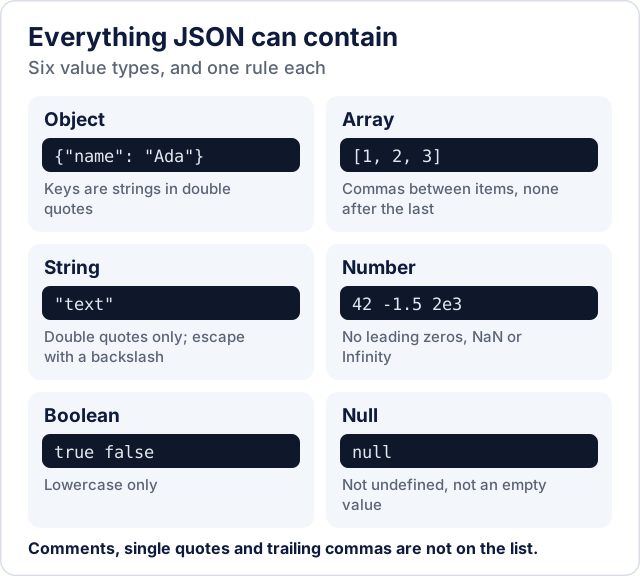
JSON is defined by RFC 8259 and ECMA-404. It borrowed its look from JavaScript object literals, which is exactly why copied JavaScript so often fails to parse. These are the differences that cause nearly every parse error:
| Written as | Valid in a JavaScript object literal? | Valid JSON? | JSON form |
|---|---|---|---|
{name: "Ada"} | Yes | No: keys must be quoted | {"name": "Ada"} |
{'name': 'Ada'} | Yes | No: single quotes | {"name": "Ada"} |
[1, 2, 3,] | Yes | No: trailing comma | [1, 2, 3] |
// comment or /* comment */ | Yes | No: JSON has no comments | Remove it, or store it as a field such as "_note" |
NaN, Infinity, undefined | Yes | No | null or a string |
True, None (Python) | No | No | true, null |
02134 | Only outside strict mode, where it means the octal number 1116 | No: leading zero | 2134, or "02134" to keep the zero |
The last row matters for codes that only look like numbers: ZIP codes, phone numbers and IDs with leading zeros should be strings, otherwise the zero is either rejected or lost.
Real error messages and what caused them
Each message below is the exact text produced by JSON.parse in Node.js 22, which uses the same V8 engine as Chrome and Edge. The third column is what the CoditTools JSON Formatter shows for the same input, because it converts the engine's character position into a line and column.
| Broken input | Message from V8 (Chrome, Edge, Node) | Formatter shows |
|---|---|---|
| Trailing comma after the last property | Expected double-quoted property name in JSON at position 44 (line 4 column 1) | Line 4, column 1 |
{'name': 'Ada'} | Expected property name or '}' in JSON at position 1 (line 1 column 2) | Line 1, column 2 |
{name: "Ada"} | Expected property name or '}' in JSON at position 1 (line 1 column 2) | Line 1, column 2 |
| Missing comma between two properties | Expected ',' or '}' after property value in JSON at position 20 (line 3 column 3) | Line 3, column 3 |
A // comment line | Expected property name or '}' in JSON at position 4 (line 2 column 3) | Line 2, column 3 |
| Unescaped double quote inside a string | Expected ',' or '}' after property value in JSON at position 16 (line 1 column 17) | Line 1, column 17 |
| A real line break inside a string | Bad control character in string literal in JSON at position 18 (line 1 column 19) | Line 1, column 19 |
"C:\Users\ada" (single backslashes) | Bad escaped character in JSON at position 13 (line 1 column 14) | Line 1, column 14 |
{"zip": 02134} | Unexpected number in JSON at position 9 (line 1 column 10) | Line 1, column 10 |
| Text cut off before the closing brackets | Expected ',' or ']' after array element in JSON at position 18 (line 1 column 19) | Line 1, column 19 |
Two things stand out. First, several different mistakes produce the same message: single quotes, unquoted keys and comments all report "Expected property name". The message tells you what the parser expected at that spot, not what you did wrong. Second, the wording depends on the browser. Firefox phrases the same errors differently (for example "expected double-quoted property name at line 1 column 16 of the JSON data"), and Safari often reports no position at all, in which case no line number can be shown.
Why the reported line is often after the mistake
A parser reads left to right and stops at the first character that cannot continue a valid document. With some mistakes that character comes later than the error itself:
{
  "name": "Ada"
  "age": 36
}
The missing comma belongs at the end of line 2, but the parser only knows something is wrong when it reaches "age", so it reports line 3, column 3. A trailing comma behaves the same way: in {"name": "Ada", "langs": ["en", "fr"],} spread over four lines, the report points at the closing brace on line 4, because only then does the parser find there is no next property.
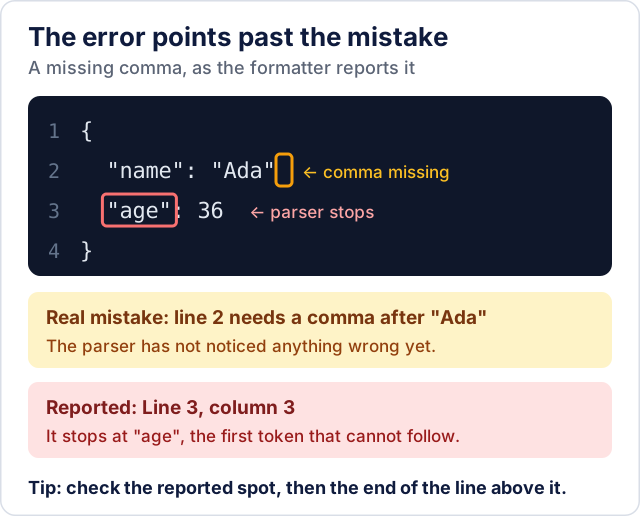
The practical rule: go to the reported position, and if nothing is wrong there, check the end of the line above it.
Errors that come without a line number
Some V8 messages have no position, so no tool can point you to a line. These four are the common ones:
- Unexpected token '<', "<!DOCTYPE "... is not valid JSON: you are parsing an HTML page, not JSON. This usually happens with a
fetchresponse from a login redirect, a 404 page or a server error page. Check the HTTP status and theContent-Typeheader before callingresponse.json(). - Unexpected end of JSON input: the input is empty or was cut off. An empty response body (for example an HTTP 204) produces this, as does a file that was only partly downloaded or copied.
- Unexpected token 'N' (or 'T', 'u'): a bare
NaN, a Python-styleTrue/None, orundefinedwritten into the text. The message quotes a short excerpt such as...""active": True, "man"..., which helps you find it. - Unexpected token ']' with the whole array quoted, as in
"[1, 2, 3,]" is not valid JSON: a trailing comma inside an array. For a trailing comma in an object, V8 does give a position (see the first row of the table above).
A less obvious one: a file saved with a byte order mark (BOM), which some Windows editors add, fails with "Unexpected token" pointing at an invisible character before the first {. Re-save the file as UTF-8 without BOM, or strip the leading \uFEFF character before parsing.
Escaping backslashes, quotes and line breaks
Inside a JSON string, a backslash always starts an escape sequence, and only these are allowed: \", \\, \/, \b, \f, \n, \r, \t and \uXXXX. Anything else is an error. That is why a Windows path breaks:
{"path": "C:\Users\ada"}     ← fails: \U is not a valid escape
{"path": "C:\\Users\\ada"}   ← valid; the value is C:\Users\ada
The same applies to quotes and line breaks inside a value. "The \"best\" plan" is valid, while a quote without the backslash ends the string early. A multi-line note must contain the two characters \n, not an actual line break. If you build JSON by gluing strings together in code, these are the bugs you will hit; generating it with JSON.stringify (or your language's JSON library) escapes everything correctly.
What a format pass can change in your data
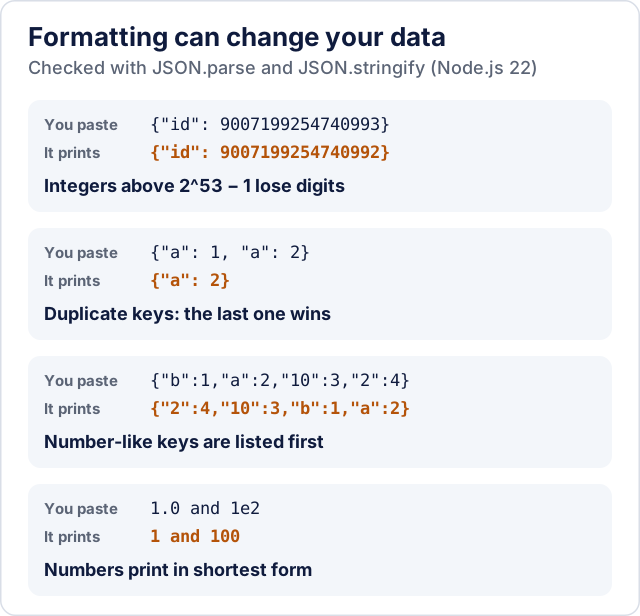
Most formatters, including the CoditTools one, work by parsing the text with JSON.parse and printing it again with JSON.stringify. The output is valid and equivalent for most uses, but it is not always byte-for-byte the same data. These results were checked in Node.js 22, and browsers behave the same way because they implement the same JavaScript rules:
| Input | After formatting | Why |
|---|---|---|
{"id": 9007199254740993} | 9007199254740992 | JavaScript numbers are 64-bit floats; integers above 253 − 1 (9007199254740991) cannot all be represented exactly |
{"a": 1, "a": 2} | {"a": 2} | Duplicate keys: the last value wins and the first is dropped |
{"b": 1, "a": 2, "10": 3, "2": 4} | {"2": 4, "10": 3, "b": 1, "a": 2} | Keys that look like array indexes are listed first, in numeric order |
{"price": 1.0, "big": 1e2} | {"price": 1, "big": 100} | Numbers are reprinted in their shortest form |
"\u00e9" | "é" | Unicode escapes are printed as the actual character |
The large-integer case is the one to watch. 64-bit database IDs and some payment or order references exceed 253, so a format-then-copy round trip can silently corrupt them. This is why some APIs send large IDs as strings as well; Twitter's original v1.1 API, for example, returned both id and id_str. See MDN on Number.MAX_SAFE_INTEGER and JSON.parse for the underlying rules. If exact digits matter, inspect the original text rather than a reformatted copy.
Formatting and checking JSON with the CoditTools formatter
The JSON Formatter runs in your browser; the text is parsed by your browser's own JSON.parse and is not uploaded. What it offers:
- Format with 2 or 4 spaces of indentation, or Minify to remove all whitespace (useful for compact payloads or config values that must fit on one line).
- Auto format, which re-checks and re-formats as you type, so an error message appears the moment the text becomes invalid and disappears once it is fixed.
- Error messages with a line and column whenever the browser reports a position (Chrome, Edge and Firefox do; Safari often doesn't).
- Uploading a
.jsonfile, copying the result, or downloading it asdata.jsonordata.min.json.
It does not repair JSON for you: it will not add missing commas or convert single quotes. That is deliberate, because an automatic "fix" has to guess what you meant, and with strings that contain apostrophes or commas a wrong guess changes your data without telling you.
When another tool is the better choice
- Very large files. Pasting tens of megabytes into a browser text box is slow. On the command line,
python -m json.tool data.jsonvalidates and pretty-prints a file, andjq . data.jsondoes the same if jq is installed. - Config files with comments. Formats such as JSONC (used by VS Code settings and
tsconfig.json) and JSON5 allow comments and trailing commas. A strict JSON parser rejects them, which is correct; validate those files with the program that reads them. - Turning JSON into a table. For an array of records, the JSON to CSV converter or JSON to Excel gives you rows and columns instead of indentation. Going the other way, CSV to JSON builds the JSON for you, so there are no quoting mistakes to fix.
Try the tools mentioned in this post - all free, no account needed.
Runs in your browser. No watermarks. No file uploads to a server.
Browse developer tools →